
 RowCraft – Table Fields for Jira
Using the app
Show a RowCraft report on a Jira dashboard
The RowCraft report dashboard gadget shows a report as a chart or a summary table. Put it beside other Jira gadgets to follow purchasing, test results or checklist progress without opening the reports page first.
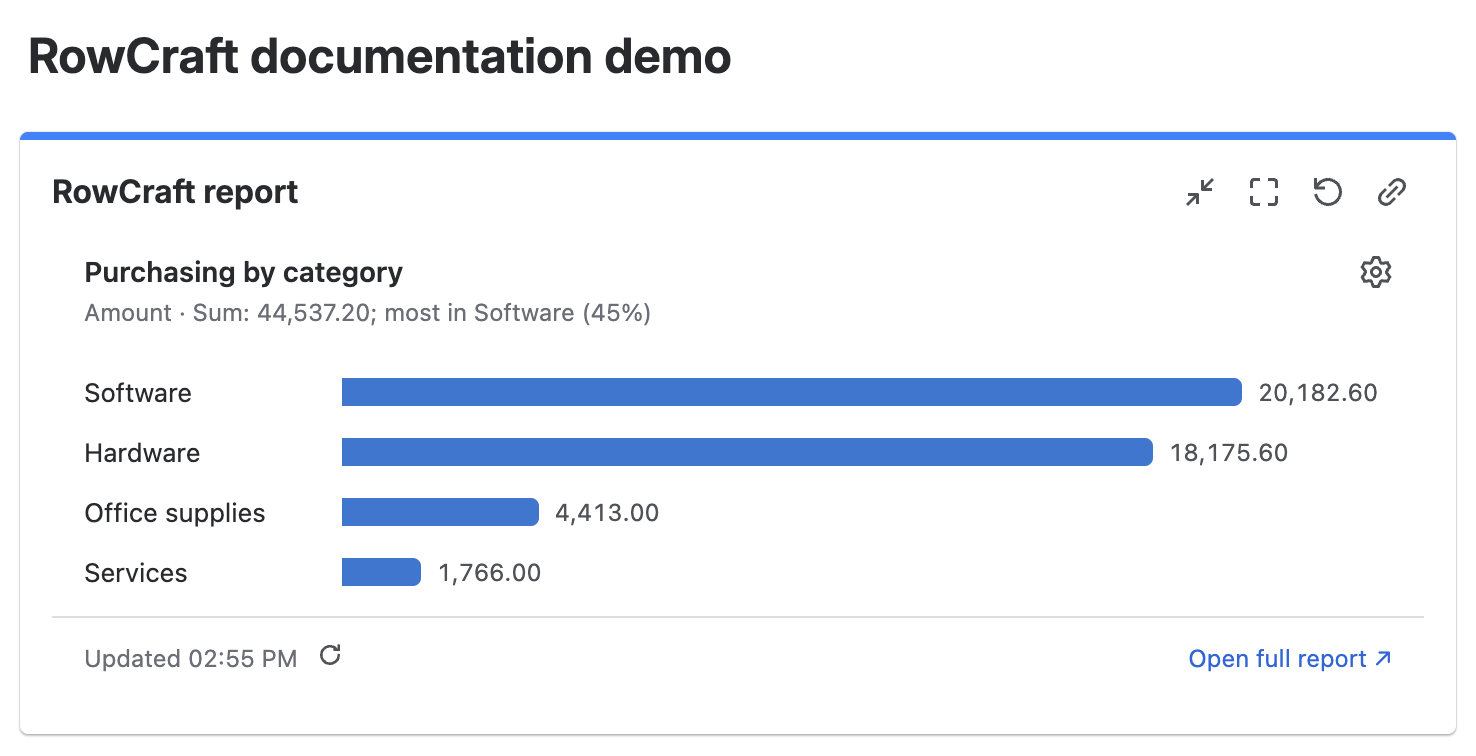
Add and configure the gadget
- Open a Jira dashboard you can edit and select Add gadget.
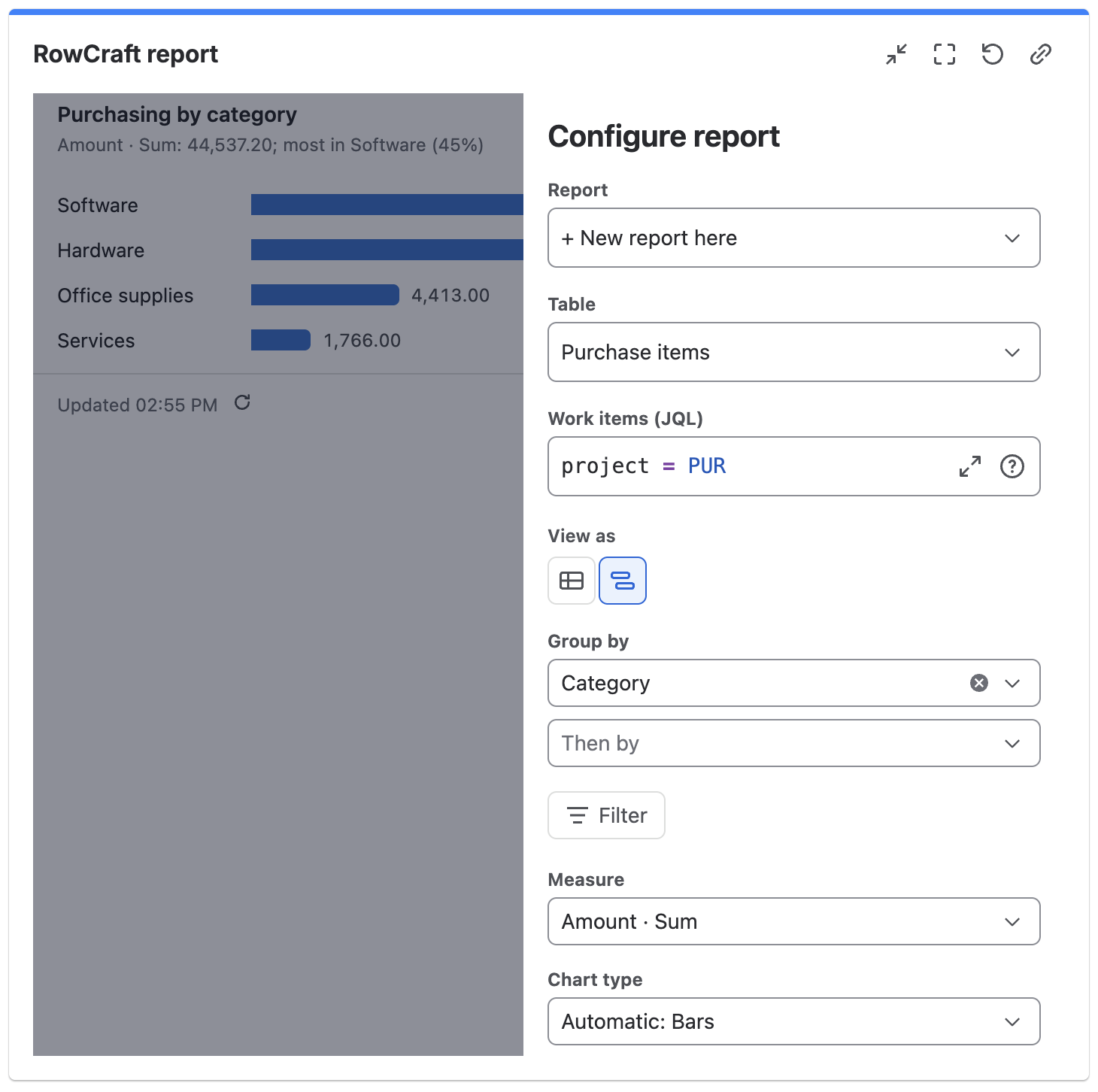
- Find RowCraft report and add it. Select Configure report the first time; use the gear to change an existing configuration.
- Under Report, choose one of your saved views (My views), a view Shared with me, or + New report here.
- Under View as, choose a table or a chart, optionally enter a Title, then select Save.
Only people who can edit the dashboard see the gear and can change the gadget's settings.
When you select a saved view, the gadget follows that view. Its table, JQL, filters, grouping and chart settings are maintained on the Reports page; changing the saved view changes every gadget that uses it. The gadget's table or chart choice and its title are its own.
With + New report here, choose the table, optional JQL, filters and up to two grouping levels (Group by and Then by) in the gadget. For a chart, choose a Measure and Chart type; the chart choices are the same as on the reports page. A chart needs at least one grouping; without one, the gadget shows Not grouped yet.
To reuse the definition elsewhere, select Save as a report view…. It is saved as your private view on the reports page, and the gadget then follows that view.
Open the underlying report
- Select a chart group, or a group name in the gadget's table, to open the reports page in a new tab with the matching rows. It opens as a new, unsaved report, so the saved view is not changed.
- Select Open full report to open the report itself on the reports page, with the full table, chart, filtering and export controls.
Limits and missing data
A gadget counts at most 5,000 work items and 500,000 rows. When more work items match, the gadget counts the first 5,000 and says Only the first 5,000 of N work items are counted; when the row limit is reached, it says Row limit reached: results are incomplete. Narrow the work items with JQL, or open the full report, which reads up to 100,000 work items.
Results depend on the viewer's Jira permissions and the RowCraft licence. If a referenced view was deleted, is no longer shared with you, or its table no longer exists, the gadget says so; choose another report in the gadget settings.