
 RowCraft – Table Fields for Jira
Using the app
Edit a RowCraft table
RowCraft's editor works like a spreadsheet: select a cell and type, move with the arrow keys and Tab, paste a block of cells from Excel, and watch formulas and totals update as you go.
Where you edit
| Where | How to start | How changes are saved |
|---|---|---|
| A table field in the work item view | Click the table | Save below the table (Cancel discards) |
| Create, transition and service-portal forms | The table is ready to type in | With the form (Create, Transition, Send) |
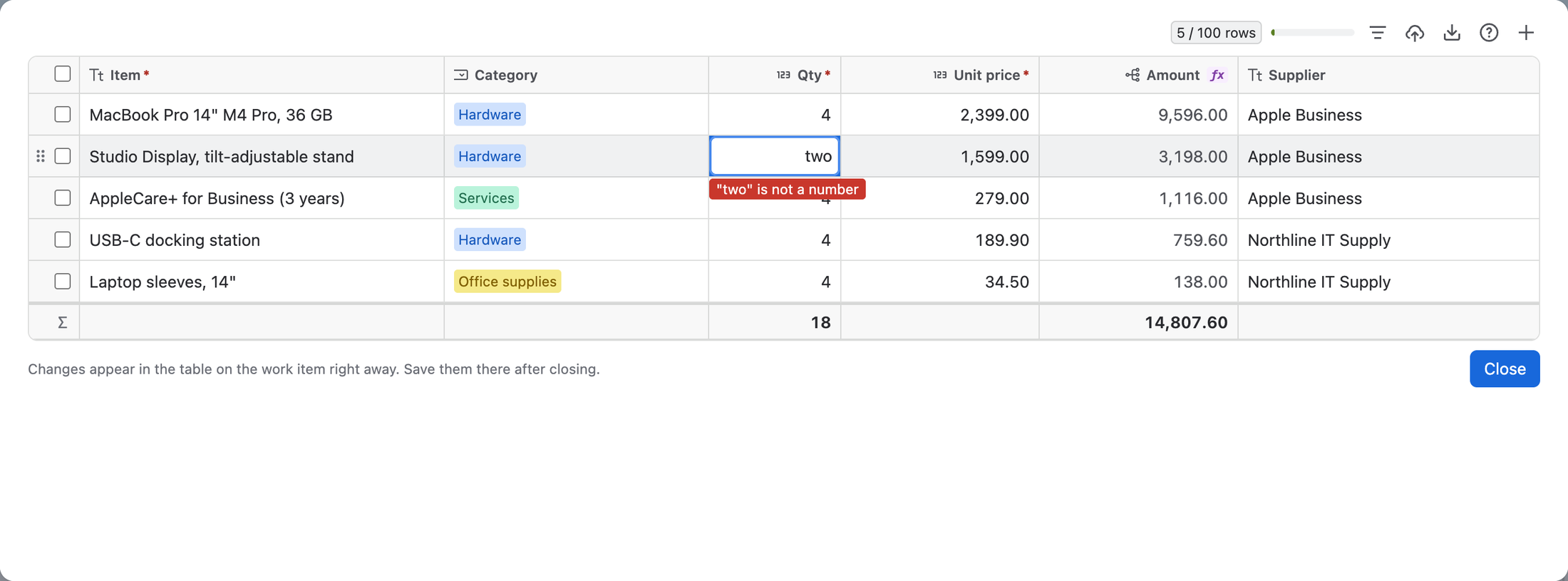
| The large editor | Expand in the table's toolbar | Changes appear in the table on the work item right away; save them there after closing |
| A panel table | Click a cell in the RowCraft tables panel | Save in the panel |
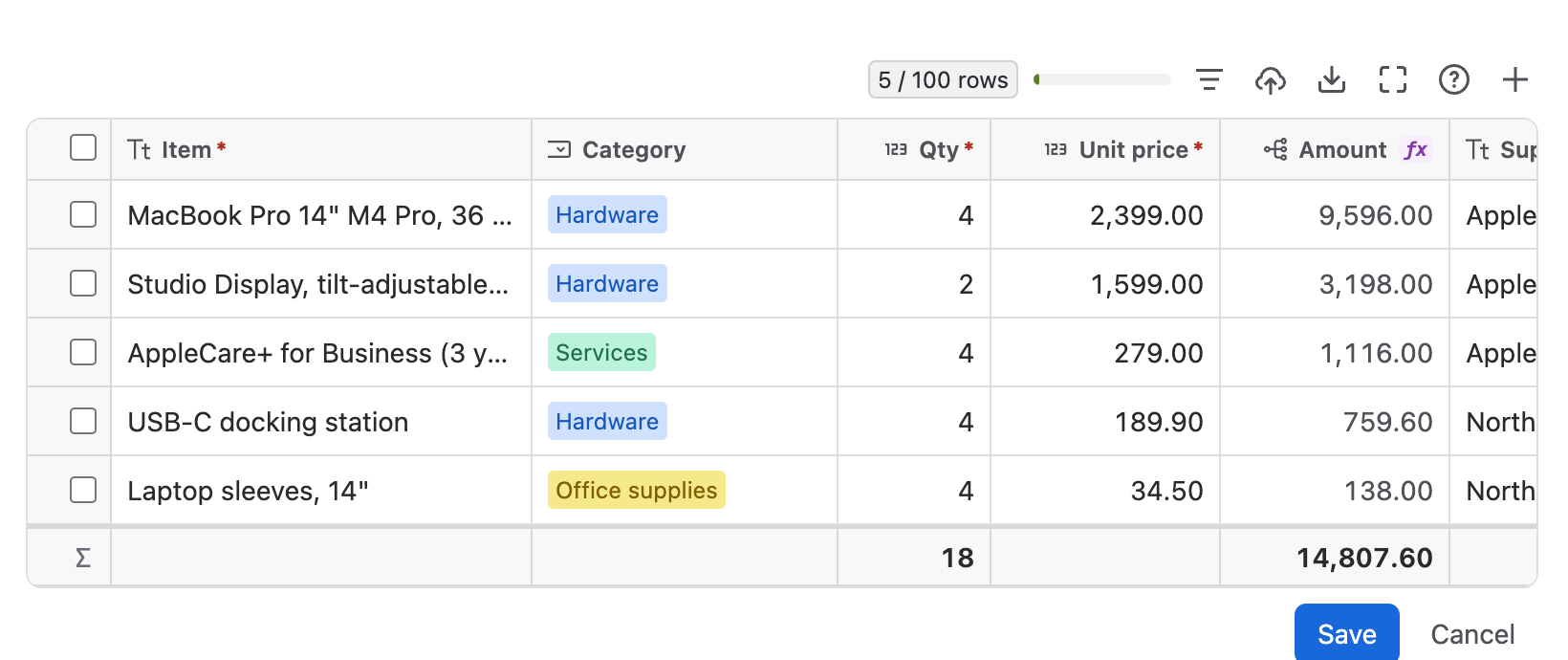
The toolbar shows the number of rows against the maximum (for example 5 / 100 rows) and a meter for the space used in the Jira field, which holds up to 32,768 characters. Then come Filter, Import, Download, Expand, Help and Add row.
Type and move between cells
- Select a cell and start typing to replace its value, or press Enter or F2 to edit the current value.
- Tab and Shift+Tab save the cell and move to the next or previous cell. Enter while editing saves and moves down. Esc cancels the edit.
- Press Enter in the last row to add a new row below it.
- Select lists, multi selects, dates, people and work items open their own pickers: type to filter, then press Enter. For a checkbox, press Space.
- Formula and row-number columns are calculated; they cannot be typed in.
Input methods for Chinese, Japanese and other languages work in every cell, and Enter while composing never saves a cell by accident.
Keyboard shortcuts
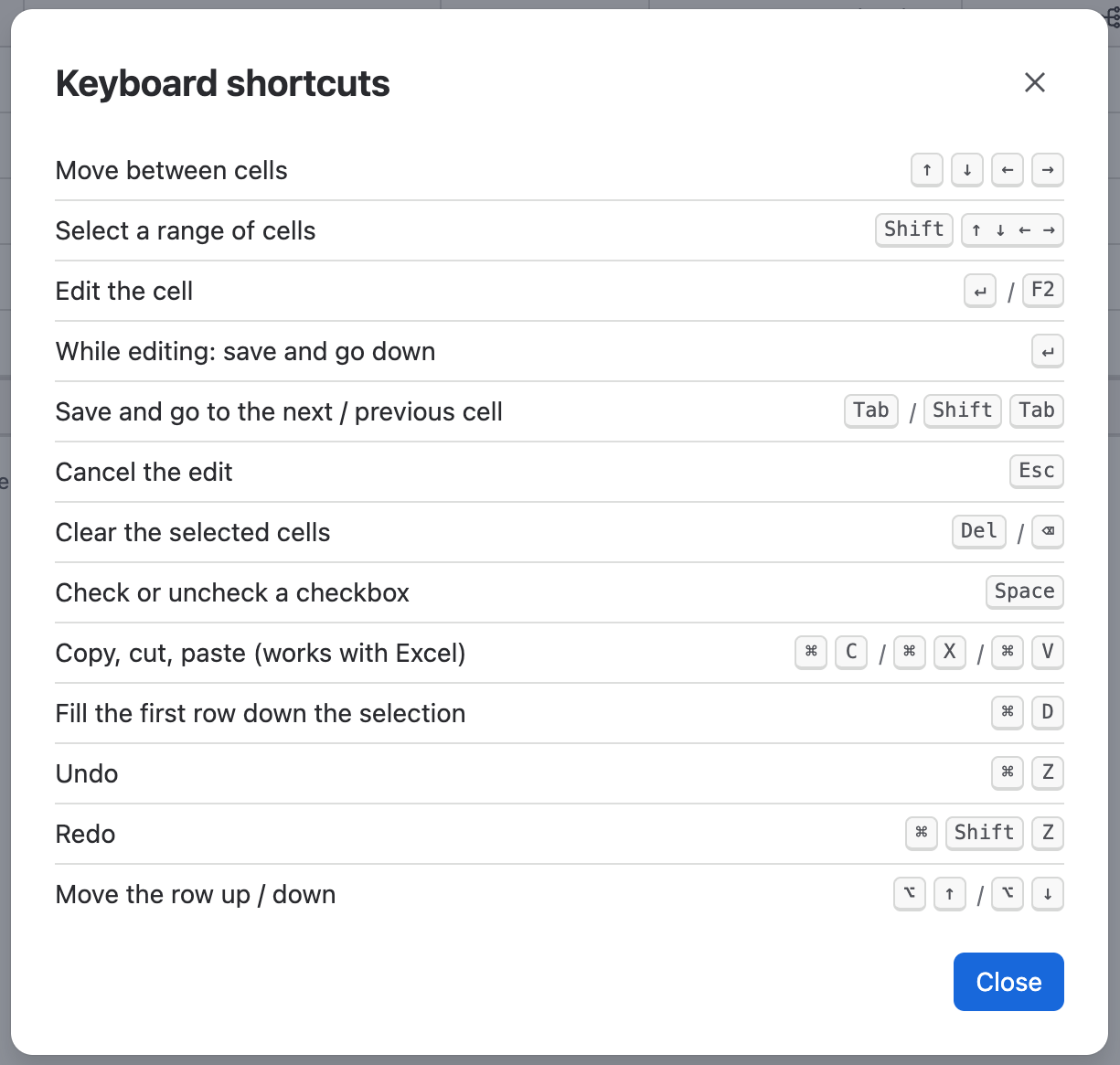
Open Help → Keyboard shortcuts in the toolbar to see the list at any time. On Windows and Linux, use Ctrl instead of ⌘ and Alt instead of ⌥.
| Action | Keys |
|---|---|
| Move between cells | ↑ ↓ ← → |
| Select a range of cells | Shift + ↑ ↓ ← → (or Shift-click, or drag) |
| Edit the cell | Enter or F2 |
| While editing: save and go down | Enter |
| Save and go to the next / previous cell | Tab / Shift+Tab |
| Cancel the edit | Esc |
| Clear the selected cells | Delete or Backspace |
| Check or uncheck a checkbox | Space |
| Copy, cut, paste (works with Excel) | ⌘C, ⌘X, ⌘V |
| Fill the first row down the selection | ⌘D |
| Undo | ⌘Z |
| Redo | ⌘⇧Z |
| Move the row up / down | ⌥↑ / ⌥↓ |
Select cells and see their totals
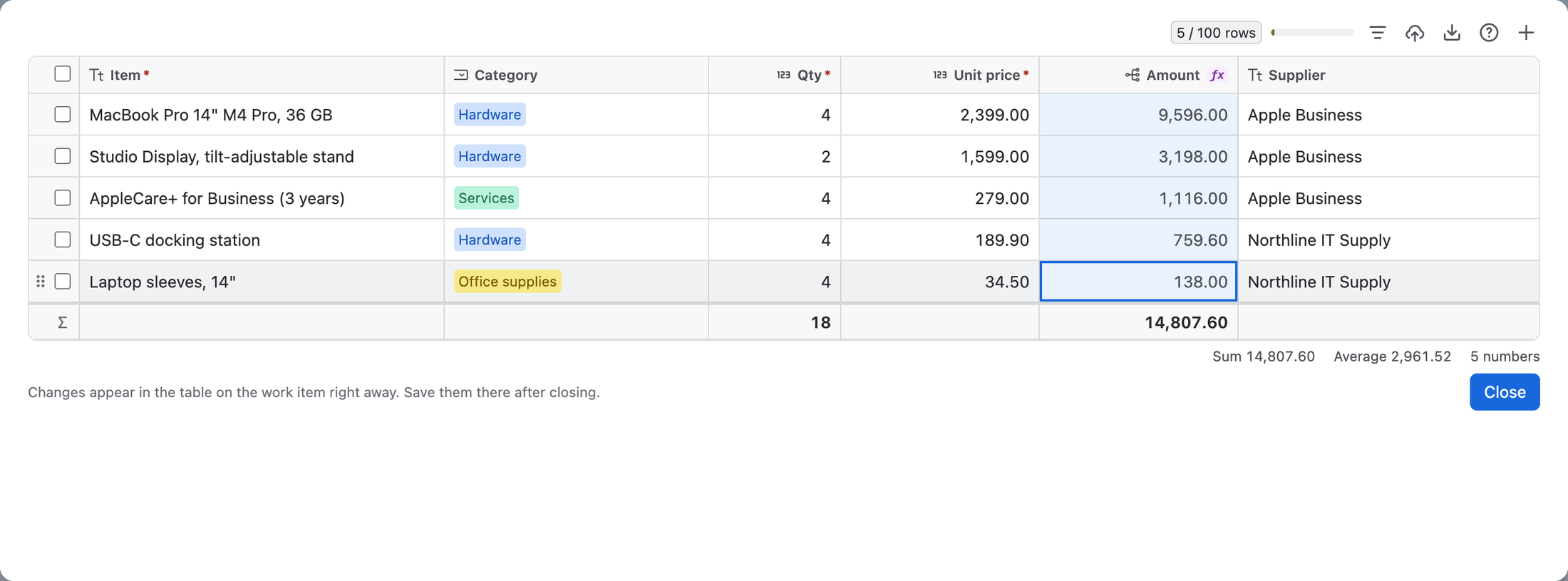
Drag across cells, Shift-click, or use Shift with the arrow keys to select a range. When the selection contains several numbers, the bar under the table shows their Sum, Average and how many numbers are selected, like a spreadsheet's status bar.
Fill down
Select a range whose first row has the values you want, then press ⌘D (Ctrl+D). The first row's values are copied into every selected row below it, for example to give ten rows the same supplier.
Copy and paste with Excel
- Copy (⌘C) and Cut (⌘X) put the selected cells on the clipboard as tab-separated text without a header row, exactly as Excel does. Paste them into Excel, Google Sheets or another RowCraft table.
- Paste (⌘V) a block of cells from Excel into the selected cell. Rows below the table are added automatically, up to the maximum number of rows.
- Every pasted value is checked like typed input. Values that do not fit (for example text in a number column or an unknown option) are left empty, and Some cells were not filled in lists them with their row and column.
- People are matched by name and work items by key while pasting.
- An empty table can be clicked and pasted into straight away.
To bring in a whole file instead, use Import rows from a file.
Undo and redo
⌘Z (Ctrl+Z) undoes the last change in the table and ⌘⇧Z (Ctrl+Shift+Z) redoes it, for typing, pasting, fill down and clearing cells as well as row changes.
Row actions
Tick the checkbox at the start of one or more rows (or the header checkbox for all rows). Two icons appear in the toolbar:
- Copy selected rows duplicates them below.
- Delete selected rows removes them. If a rule protects some rows, those are kept and the message says why.
With rows ticked, Add row inserts the new row below the last ticked row.
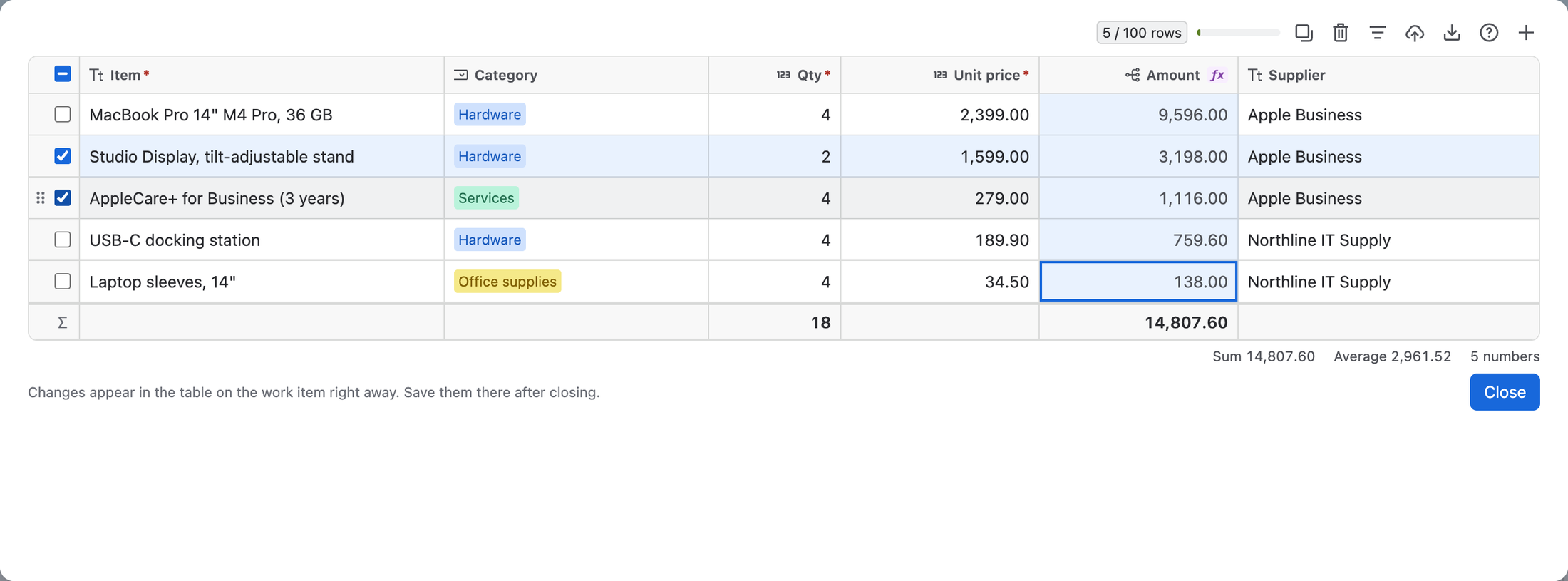
To move a row, drag the handle that appears at its left edge, or press ⌥↑ / ⌥↓ (Alt+↑ / Alt+↓).
The large editor (Expand)
Tables in the work item view share the main column with other fields. Select Expand in the toolbar to edit in a large window with the full width of the screen. Everything works as in the normal editor, including download. Changes appear in the table on the work item right away; select Close, then Save on the work item.
Errors and validation
RowCraft checks values as you type and again when you save:
- A value that does not fit the column is marked at once, for example "two" is not a number or "Qty" must be at least 1.
- Empty required cells are marked after the first save attempt in the work item view; on create, transition and portal forms they are marked while you type.
- A failed save lists every problem under Fix these before saving.
- Text longer than 1,000 characters is rejected with the count; it is never cut off.
Jira checks the same rules again on the server, so a table that breaks a rule cannot be saved by any route.
If a save is uncertain
If the connection drops before Jira answers, RowCraft says Not sure the table was saved. Refresh the work item to see what was saved before you save again: the field may still show the old table until then.