
 RowCraft – Table Fields for Jira
Using the app
Add a RowCraft panel table
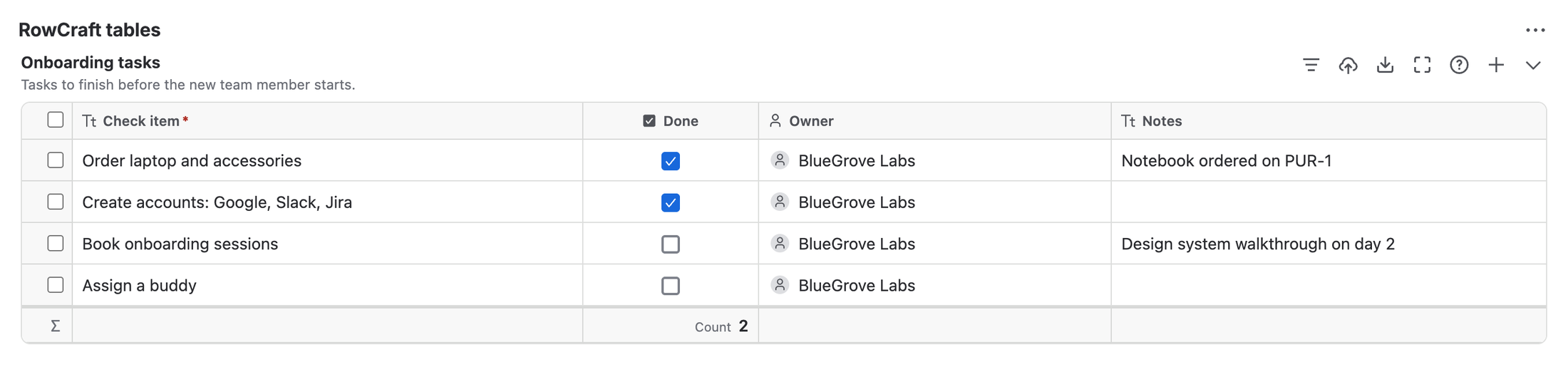
A panel table is a RowCraft table that is not a custom field. It appears in the RowCraft tables panel of the work item view, on every work item of the projects and work types you choose. Panel tables need no screen changes, which makes them a quick way to give a team a checklist, a list of vendor quotes or a log on existing work items.
Field table or panel table?
| Field table | Panel table | |
|---|---|---|
| On create, transition and portal forms | Yes | No: the panel is on the work item view only |
| Needs screen changes | Yes | No |
| Required on create (minimum rows) | Checked when the work item is created or edited | Checked when the table is saved in the panel |
| Stored in | The custom field value on the work item | A work item property (one per table) |
| JQL function | rowcraftField() |
rowcraftPanel() |
| Change history | Jira's own field history, including changes made before RowCraft displayed it | Recorded by RowCraft from the first save |
| Limit | Like any custom field | 50 panel tables per site; 10 of them searchable per work item |
Create a panel table
You need the Administer Jira permission.
- Go to Apps → RowCraft → Panel tables and select New panel table.
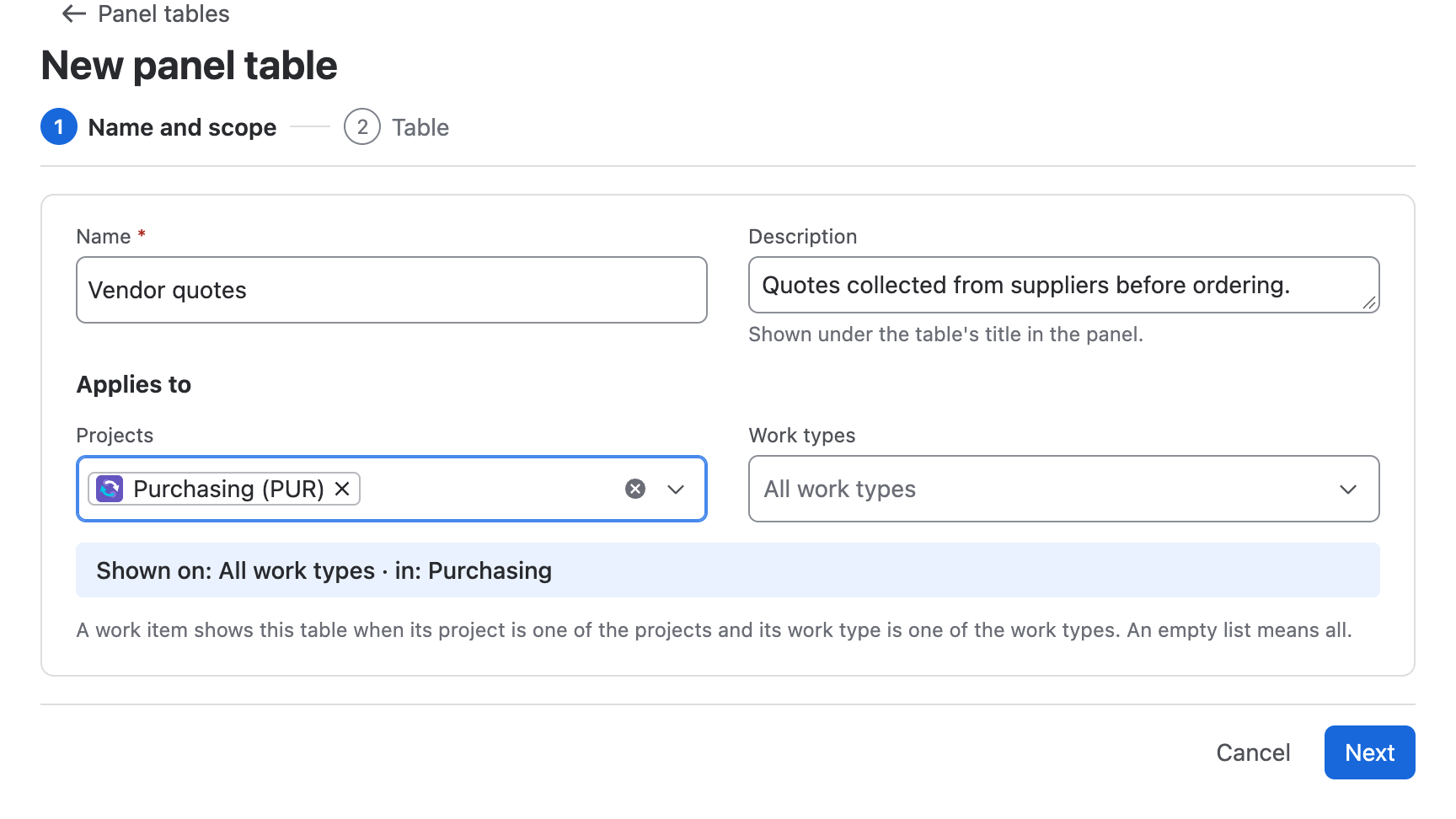
- In Name and scope, enter a Name and an optional Description (shown under the table's title in the panel).
- Under Applies to, choose the Projects and Work types. A work item shows the table when its project is one of the projects and its work type is one of the work types. An empty list means all.
- Select Next. In Table, start from a template, copy another field's table, or add columns yourself, exactly as in the column designer.
- Select Create panel table.
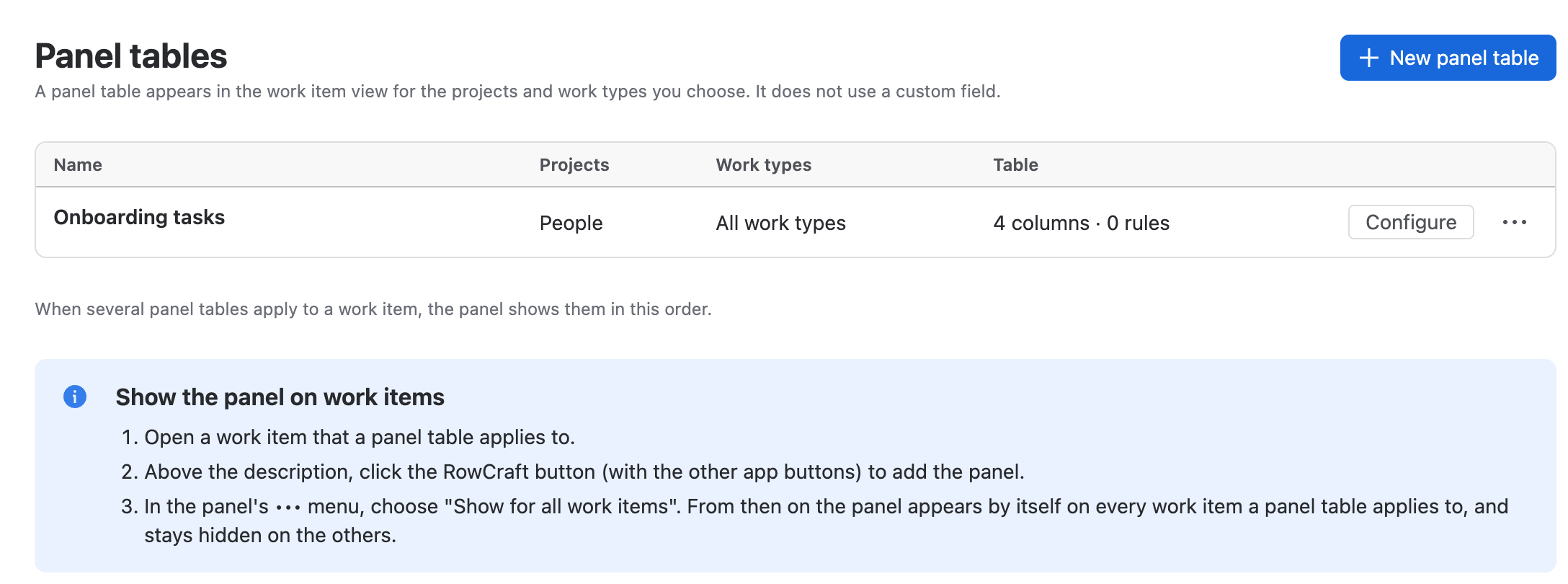
Show the panel on work items
Jira adds an app's panel to a work item only after someone opens it there once. Do this once per site, as a Jira administrator:
- Open a work item that a panel table applies to.
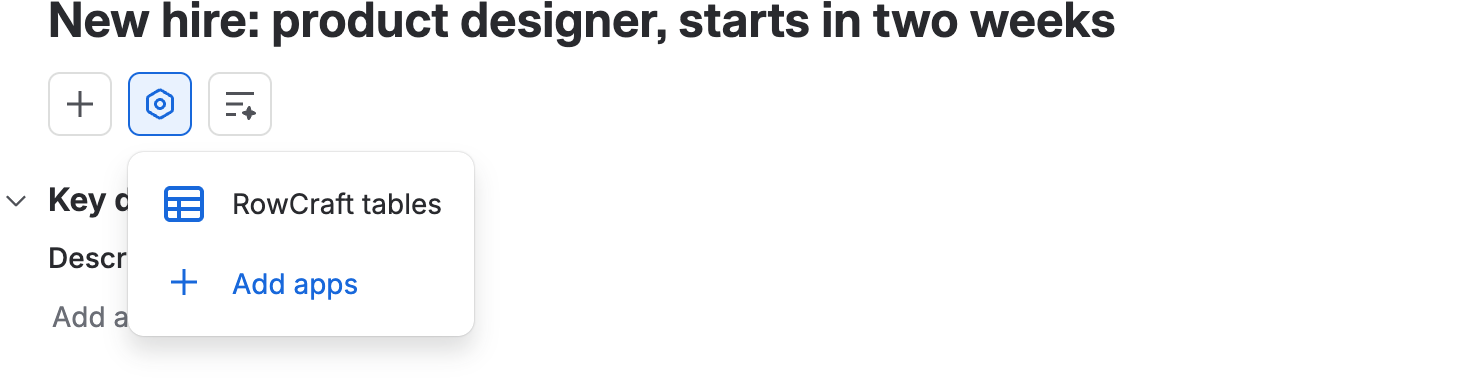
- Under the work item title, select the apps button and choose RowCraft tables. The RowCraft tables panel is added to the work item.
- In the panel's ••• menu, choose Show for all work items.
From then on the panel appears by itself on every work item that a panel table applies to, and stays hidden on the others. When you change a table's scope, add a project or create a project, RowCraft updates this automatically.
Fill in a panel table
Editing works as in a field table: click a cell and type, use keyboard shortcuts, paste from Excel or import a file. The panel shows Unsaved changes with Save and Cancel until you save.
- Saving needs the Edit work items permission on the work item. RowCraft checks the scope, rules, locks and required cells on the server before it writes the rows.
- If someone else saved the same table in the meantime, RowCraft refuses to overwrite their rows and asks you to reload.
- The chevron next to the toolbar collapses a table, for example when several tables are stacked.
- A new panel table starts empty. Default rows from the designer apply to table fields; for a panel table, add or import the rows on the work item.
Change, reorder or delete panel tables
- Configure opens the table's name, scope and columns. Saving applies the change to every work item in the scope the next time it is opened.
- Move up / Move down in the ••• menu changes the order of the tables in the panel.
- Delete removes the table and its rows on every work item, together with their search data and change history. This cannot be undone.
Search and report on panel tables
- Search with
rowcraftPanel("<panel table>", "<conditions>"). The panel table can be named by its name or its ID (thep3part of the address/panels/p3). See Search with JQL. - Reports list panel tables under Panel tables in the Table picker.
- Up to 10 panel tables can be searched on one work item. The rows of an eleventh table on the same work item are saved and shown, but are not found by JQL on that work item.