
 RowCraft – Table Fields for Jira
Using the app
RowCraft column settings and formulas
Each column has its own settings. In the column designer, select Settings on the column's row to open them. Which settings appear depends on the column type.
| Setting | Text, Long text | Number | Formula | Date | Select, Multi select | Checkbox | User | Work item |
|---|---|---|---|---|---|---|---|---|
| Options and option colours | ✓ | |||||||
| Decimals, prefix and suffix | ✓ | ✓ | ||||||
| Formula | ✓ | |||||||
| Totals row shows | ✓ | ✓ | ✓ | ✓ | ✓ | ✓ | ✓ | ✓ |
| Default value for new rows | ✓ | ✓ | ✓ | ✓ | ✓ | |||
| Allowed range | ✓ | |||||||
| Text length and format rule | ✓ | |||||||
| Work item filter and display | ✓ | |||||||
| Column width, type icon, hide in the service portal | ✓ | ✓ | ✓ | ✓ | ✓ | ✓ | ✓ | ✓ |
Options and option colours
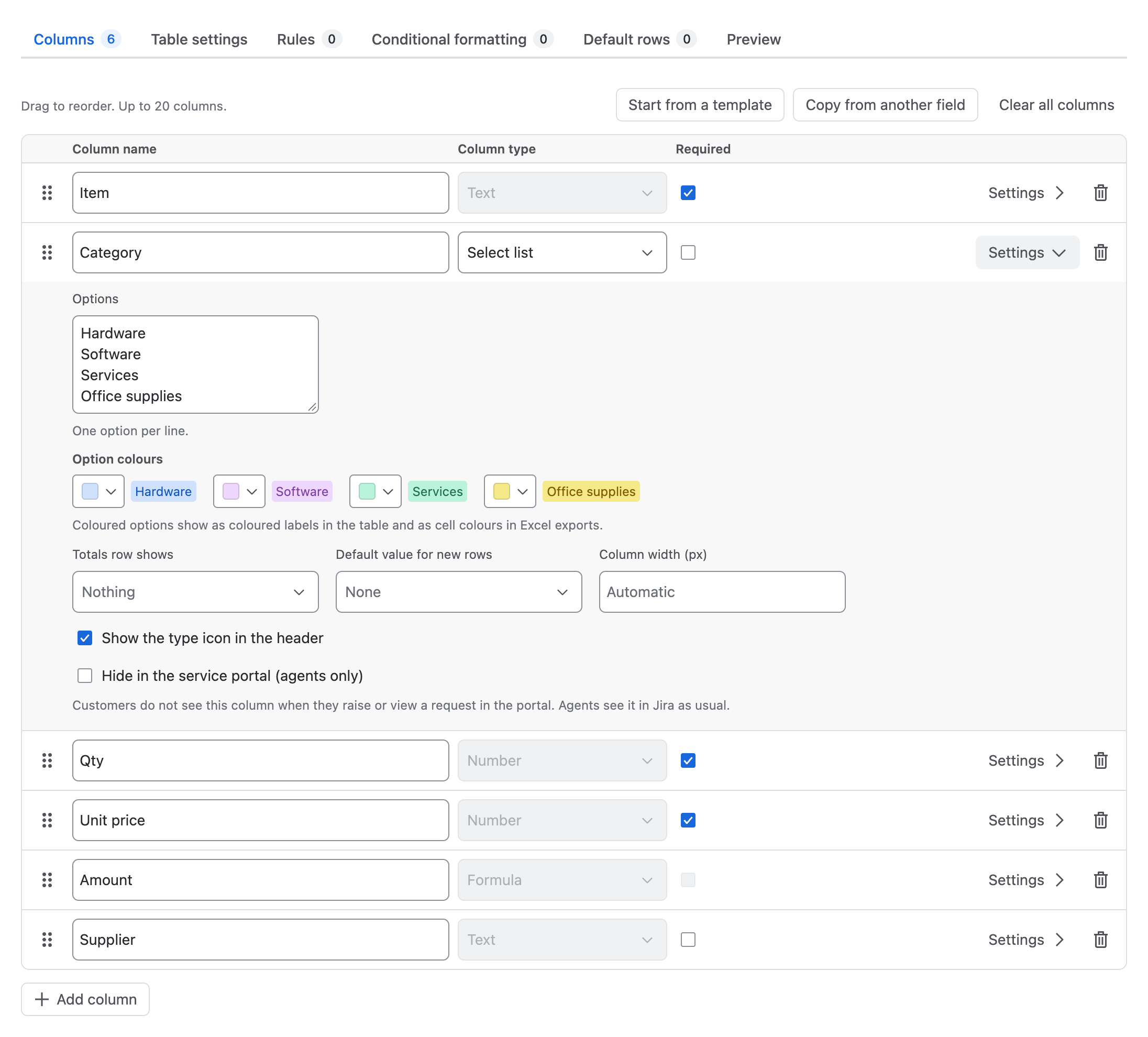
For Select list and Multi select columns, enter one option per line in Options (up to 200 options). Options are matched exactly, including upper and lower case.
Under Option colours, choose a colour for each option: grey, blue, green, yellow, red, purple, teal, lime, orange, magenta, or a custom colour (#RRGGBB). Coloured options show as coloured labels in the table and as cell colours in Excel exports.
Numbers: decimals, prefix and suffix, allowed range
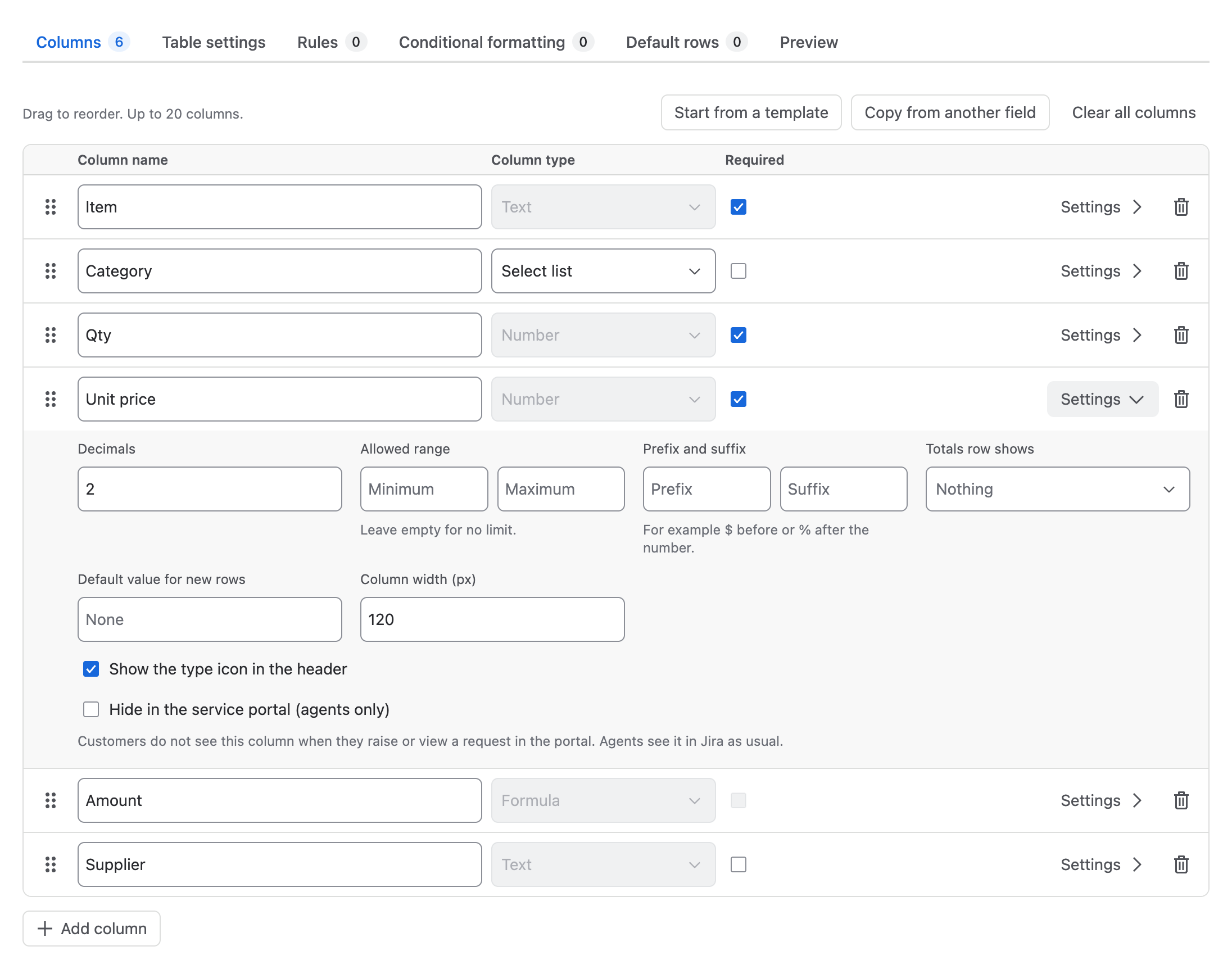
- Decimals: how many decimal places the column shows, or Automatic.
- Prefix and suffix: a unit before or after the number, for example
$or€before, or%orkgafter. Exports keep the unit in the number format. - Allowed range: a minimum and/or maximum. Values outside the range show an error such as "Qty" must be at least 1. Leave empty for no limit.
People can type numbers the way they are used to: 1,234.56, 1.234,56, 1 234,56, 1'234.56 and 12,5 are all understood. Ambiguous input such as 1,2,3 is reported as an error, never guessed.
Formulas
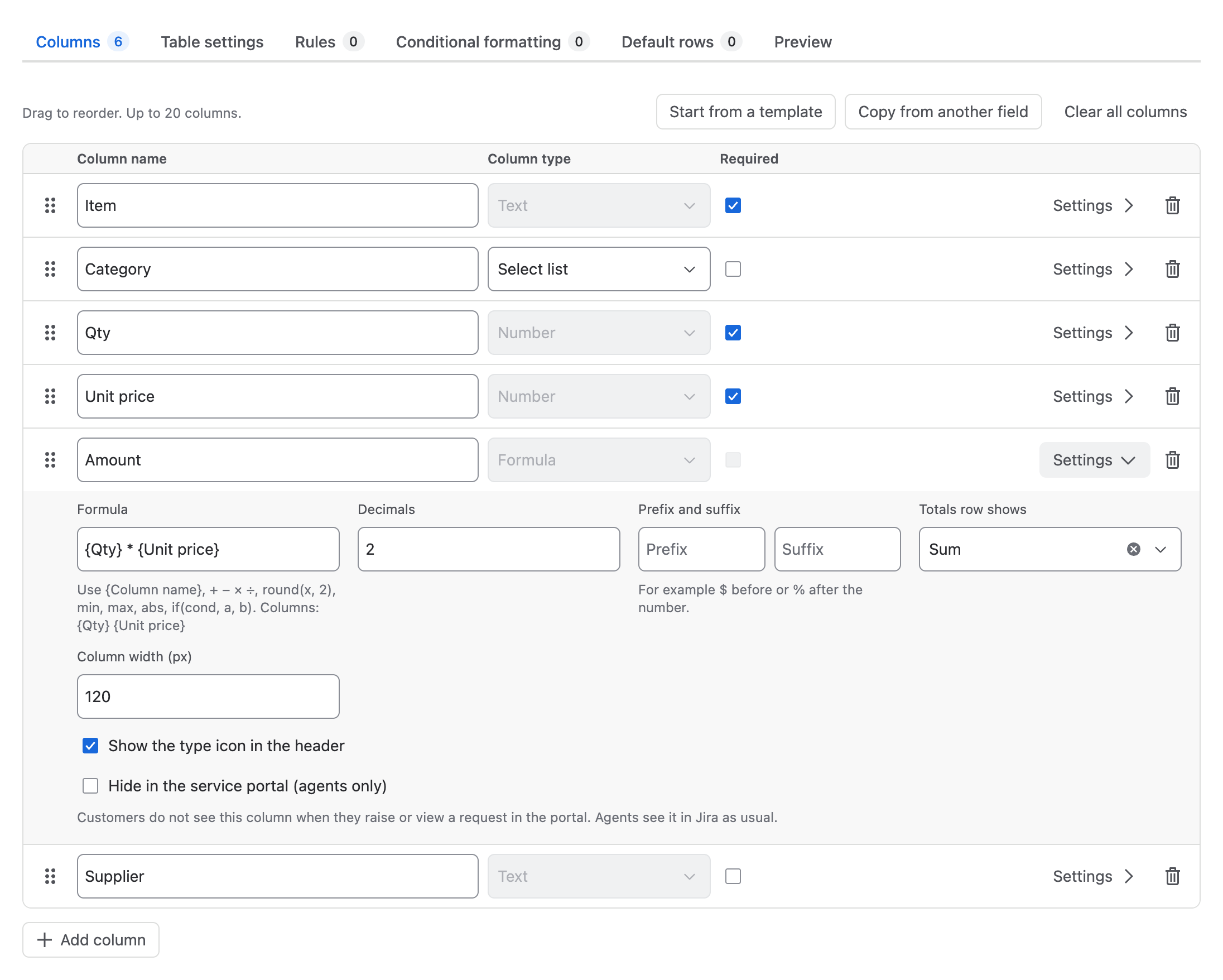
A Formula column calculates its value from other columns of the same row. People cannot type in it; it updates as they type in the other cells.
| You can use | Example |
|---|---|
| Column references in braces | {Qty} * {Unit price} |
+ - * / and parentheses |
({List price} - {Discount}) * {Qty} |
Comparisons > < >= <= == != (true is 1, false is 0) |
{Qty} > 10 |
round(x, n) |
round({Qty} * {List price} * (1 - {Discount %} / 100), 2) |
min(a, b), max(a, b), abs(x) |
max({Amount} - {Budget}, 0) |
if(condition, then, else) |
if({Qty} >= 10, {Unit price} * 0.9, {Unit price}) |
- A formula can refer to Number, Formula and Checkbox columns. A checked checkbox counts as 1, an unchecked one as 0.
- If a referenced number is empty, the result stays empty until it is filled in.
- Formulas cannot refer to each other in a loop. The designer lists the columns you can use under the formula box and reports errors such as an unknown column or a missing parenthesis.
- Formulas are calculated by RowCraft's own safe parser; no code is run.
Totals
Totals row shows decides what the Σ totals row shows under the column:
| Choice | Number and Formula columns | Other columns |
|---|---|---|
| Sum | ✓ | |
| Average | ✓ | |
| Minimum, Maximum | ✓ | |
| Number of filled rows | ✓ | ✓ (checkbox: checked rows) |
| Nothing | ✓ | ✓ |
The totals row appears in the editor, the read-only view, full screen, exports and reports. In Jira's own field history, list views and notifications, RowCraft shows a one-line summary such as 5 rows · Qty 18 · Amount 14,807.60.
To search by the table's total with Total > 1000, choose the column under Column behind Total in JQL in Table settings. Any number column can also be searched directly with SUM(...), AVG(...), MIN(...), MAX(...) and COUNT(...).
Default value for new rows
The value a new row starts with when people select Add row, press Enter on the last row, duplicate or paste rows. For checkboxes the setting is Checked by default in new rows. Default values are checked against the column's own rules (range, format, options) when you save the configuration.
To start every new table with ready-made rows (for example checklist items), use Default rows instead.
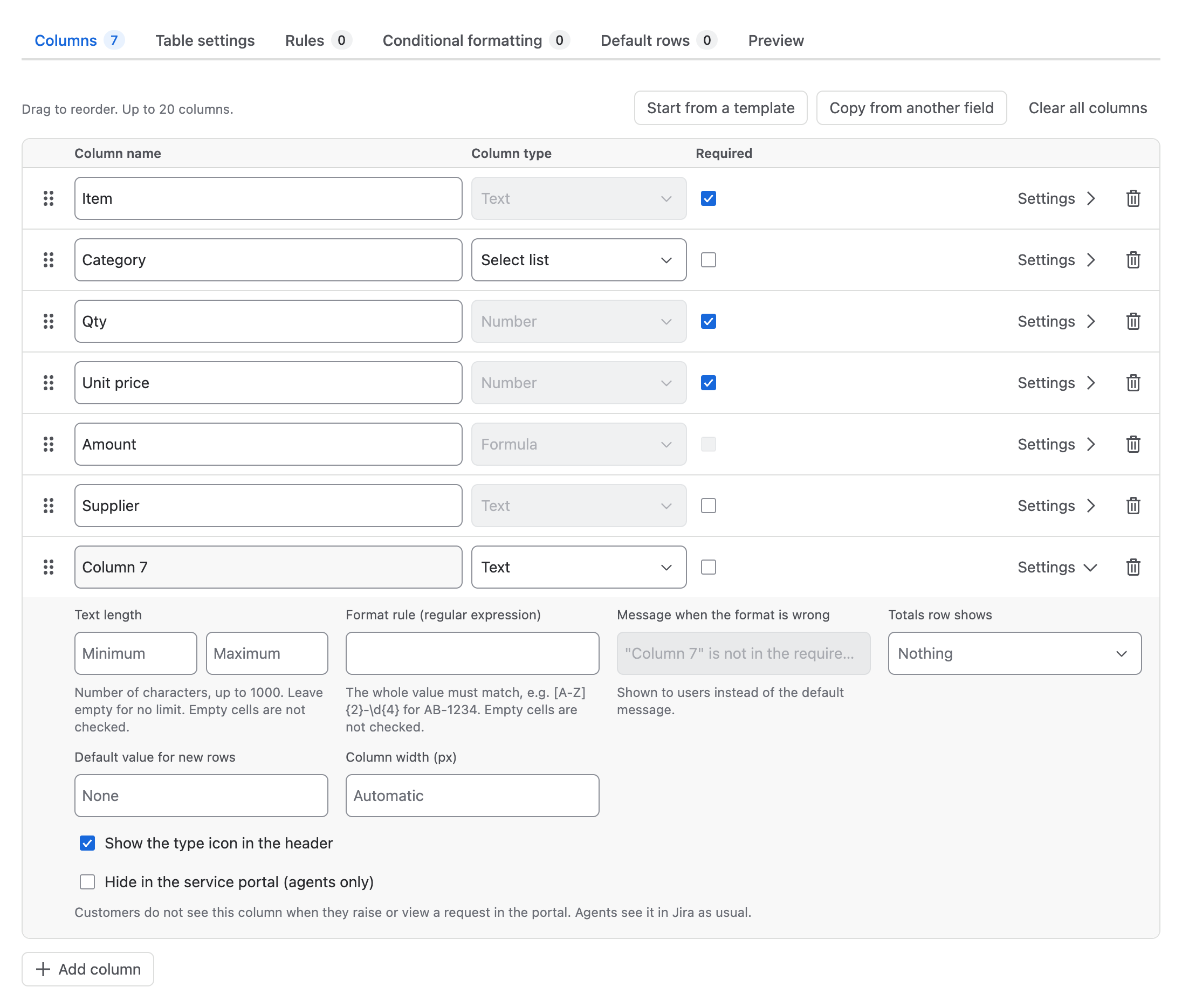
Text length and format rule
For Text and Long text columns:
- Text length: a minimum and/or maximum number of characters, up to 1,000. Empty cells are not checked.
- Format rule (regular expression): the whole value must match the expression, for example
[A-Z]{2}-\d{4}for codes such as AB-1234. Empty cells are not checked. - Message when the format is wrong: the message people see instead of the default "Column" is not in the required format.
Work item columns
A Work item column links each row to another Jira work item, for example the purchase order of a request line.
- Which work items can be picked (JQL): an optional filter, for example
project = PROC AND issuetype = "Purchase order". Empty means any work item the user can see. - Show in cells: Key, Key and summary or Key, summary and status.
- Do not allow the work item itself: prevents a row from linking to the work item that holds the table.
A table can have at most 5 work item columns. In JQL you write the key (Order = PROC-12); RowCraft stores and searches the work item's ID, so the link survives when the work item moves to another project.
Width, type icon and service portal
- Column width (px): the column's width in the editor and the read-only view. Leave it empty for automatic width. Wide tables scroll sideways; freeze the first columns to keep them in view.
- Show the type icon in the header: shows the column type's icon (for example 123 for numbers) next to the column name.
- Hide in the service portal (agents only): customers do not see this column when they raise or view a request in the Jira Service Management portal. Agents see it in Jira as usual. A required column that is hidden in the portal is not required when the work item is created (in the portal or in Jira); it becomes required when the work item is edited in Jira.