
 RowCraft – Table Fields for Jira
Using the app
Design RowCraft table columns
The column designer defines what a table looks like and how it behaves. Table fields and panel tables use the same designer. You need the Administer Jira permission.
Open the column designer
- Field table: Apps → RowCraft → Field tables → Configure on the field's context. A table field can have several contexts (for example one per project), and each context has its own columns and rules.
- Panel table: Apps → RowCraft → Panel tables → Configure.
- From Jira's field settings: Jira settings → Work items → Fields → the RowCraft field → Contexts → edit the context's configuration. This opens the same designer inside Jira's page.
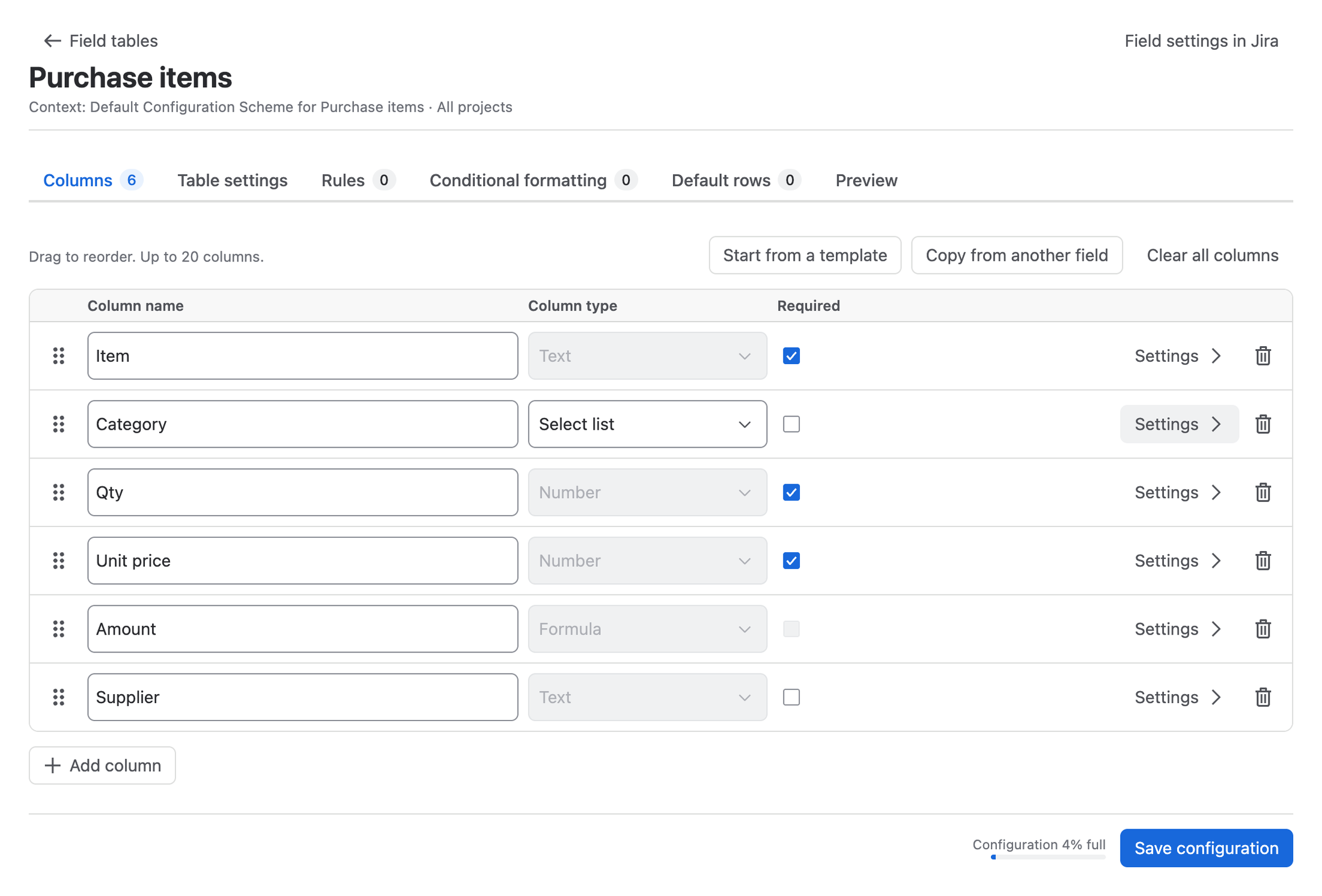
The designer has six tabs:
| Tab | What you set there |
|---|---|
| Columns | The columns, their types and per-column settings (Column settings and formulas) |
| Table settings | Minimum and maximum rows, the Total column for JQL, the read-only view and frozen columns (Table settings and rules) |
| Rules | Required, read-only, no adding or deleting rows, and status locks (Rules) |
| Conditional formatting | Colours for cells or rows that meet conditions (Colours) |
| Default rows | Rows that every new, empty table starts with (Default rows) |
| Preview | How the table starts on a new work item, with sample JQL for this table |
Nothing changes on work items until you select Save configuration. A tab with a problem is marked Has problems, and the save lists what to fix.
Start from a template
Select Start from a template, choose one of the seven templates and select Use this template. If the table already has columns, the template replaces them; data already saved on work items is kept.
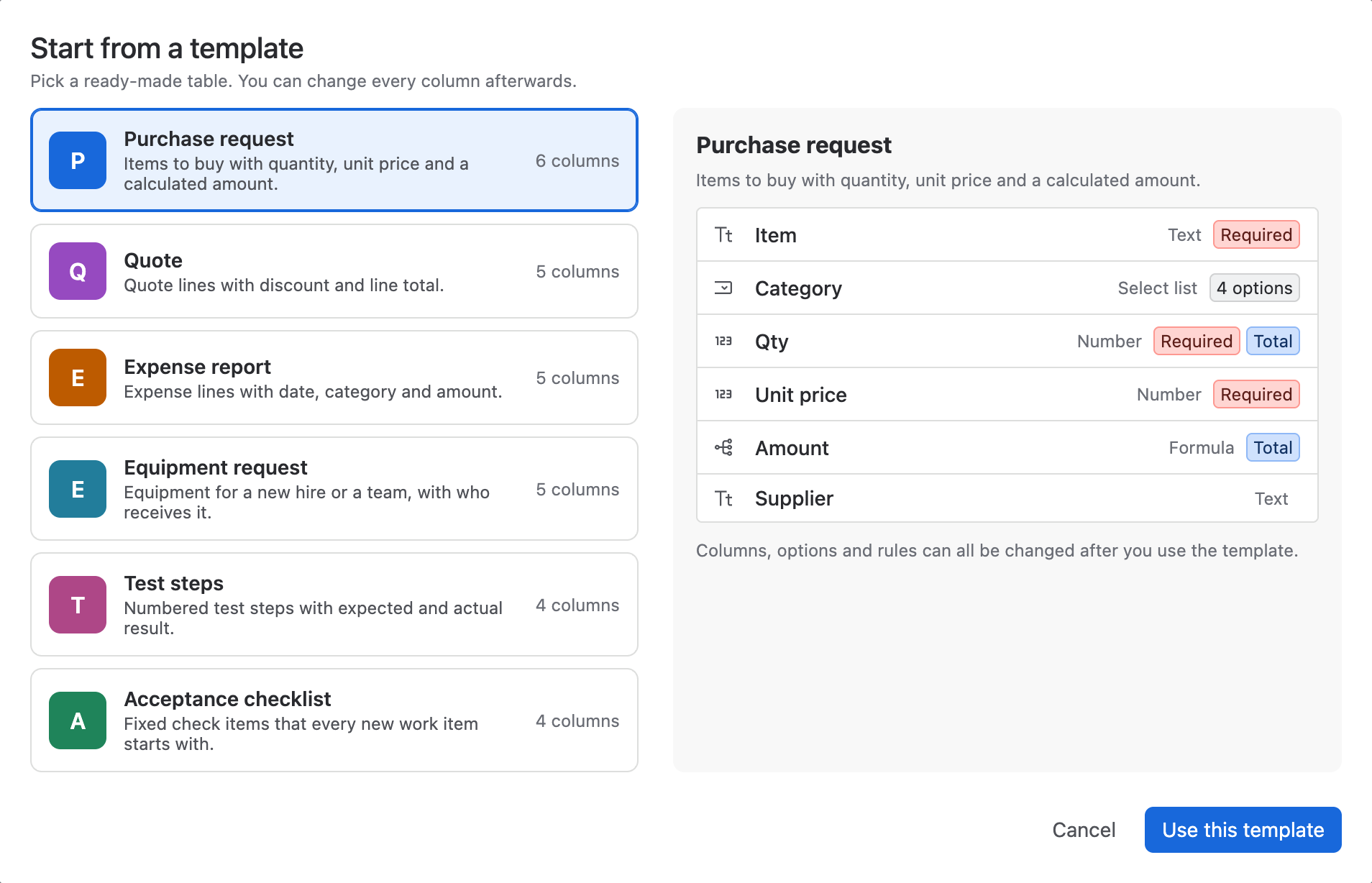
The templates are Purchase request, Quote, Expense report, Equipment request, Test steps, Acceptance checklist and Blank table. Their column names and options are created in the language of the administrator who applies them. See the template list for the columns of each.
Copy another field's table
Copy from another field lists every context of the site's RowCraft table fields with its number of columns and rules. Choose a field and a context and select Copy. Columns, rules, table settings and default rows are copied as new columns, so values saved under the old field never appear in the copy. Nothing changes until you save.
Add, rename, reorder and delete columns
- Add column adds a text column at the end. Type its name and choose its type. A table has at most 20 columns.
- Column name: names must be unique in the table and cannot contain
{or}(they are used in formulas). - Required: every row must have a value in this column. Calculated columns (formula, row number) cannot be required. For required columns that depend on conditions, use a rule.
- Reorder: drag the handle on the left of a column, or drag its header in the Preview. For the keyboard, select the handle and choose Move to top, Move up, Move down or Move to bottom.
- Delete (bin icon) removes the column. After you save, RowCraft clears the column's values from the work items in the background, without adding entries to the work items' history.
- Clear all columns removes every column and its rules from the designer, so you can start again.
The bar at the bottom shows how full the configuration is (Configuration 4% full). Options, option colours, rules and conditional formatting all take room in Jira's configuration storage.
Column types
Choose the type in the Column type list. Each type has its own editor, validation, totals and JQL operators.
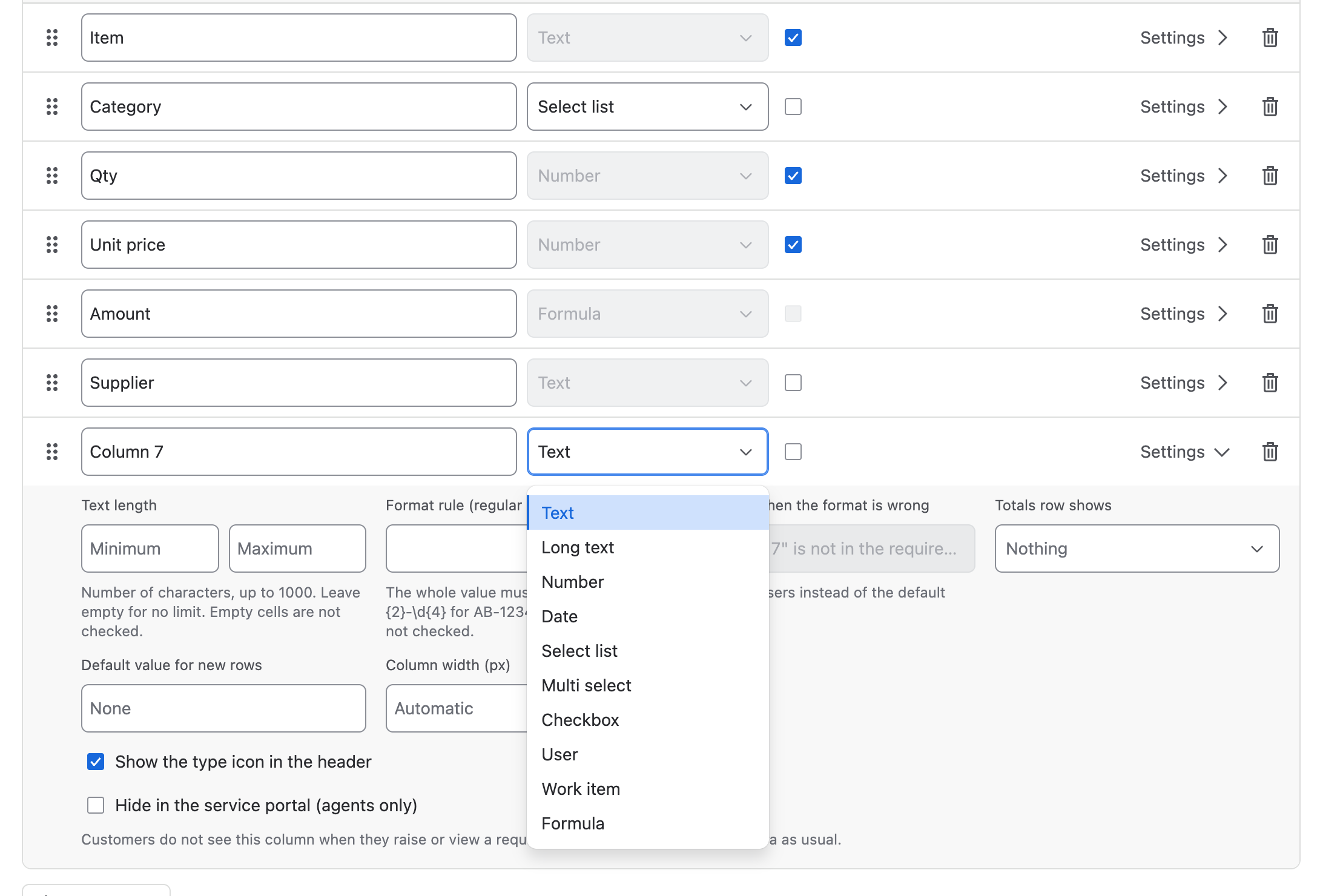
| Type | Holds | Notes |
|---|---|---|
| Text | One line of text, up to 1,000 characters | Optional length limits and a format rule (regular expression) |
| Long text | Text that wraps over several lines, up to 1,000 characters | For descriptions and test steps |
| Number | A number | Decimals, prefix and suffix (for example $ or %), an allowed range and a total |
| Date | A date (stored as YYYY-MM-DD) | Date picker; searchable with startOfMonth() and relative dates |
| Select list | One option from a list | Up to 200 options, each with an optional colour |
| Multi select | Several options from the same kind of list | Shown as coloured labels |
| Checkbox | Checked or not checked | Space toggles it; the total can count checked rows |
| User | A Jira user | People picker; searchable with currentUser() |
| Work item | A link to another Jira work item | Optional JQL filter for which work items can be picked; at most 5 per table |
| Formula | A value calculated from number, formula and checkbox columns of the same row | See Formulas |
| Row number | The row's position (1, 2, 3 …) | Display only; not stored or searched |
Save the configuration
Select Save configuration. Saved confirms that work items use the new columns and rules from now on. RowCraft also refreshes its JQL functions, so saved filters use the new columns at once.
- If the configuration was saved on another page or by someone else in the meantime, RowCraft refuses the save so that an older page cannot bring back a deleted column. Reload the page and make your changes again.
- When you change a formula or the Total column, RowCraft recalculates the search data of existing work items in the background, usually within seconds to minutes.
- Check before saving warns when the columns and rules are too complex for Jira to check at the maximum number of rows, and suggests a lower maximum.