
 RowCraft – Table Fields for Jira
Using the app
Import rows into a RowCraft table from Excel or CSV
Import fills a table from a file, for example a supplier's quote in Excel or a CSV export from another tool. You can import into a table field, a panel table, or a field's default rows.
Supported files
| Format | Notes |
|---|---|
Excel workbook (.xlsx) |
Choose the sheet to import. Older .xls files: save them as .xlsx or .csv in Excel first. |
CSV (.csv) |
Choose the encoding and the delimiter (comma, semicolon or tab). |
Tab-separated (.tsv, .txt) |
Tab-delimited text. |
Files can be up to 5 MB. The table's maximum number of rows and the space in the Jira field still apply.
Start an import
- Edit the table (click it on the work item, open it in the panel, or open the Default rows tab).
- Select Import in the toolbar and choose Import from file (CSV, Excel)…. You can also drag a file onto the table.
- Choose the file.
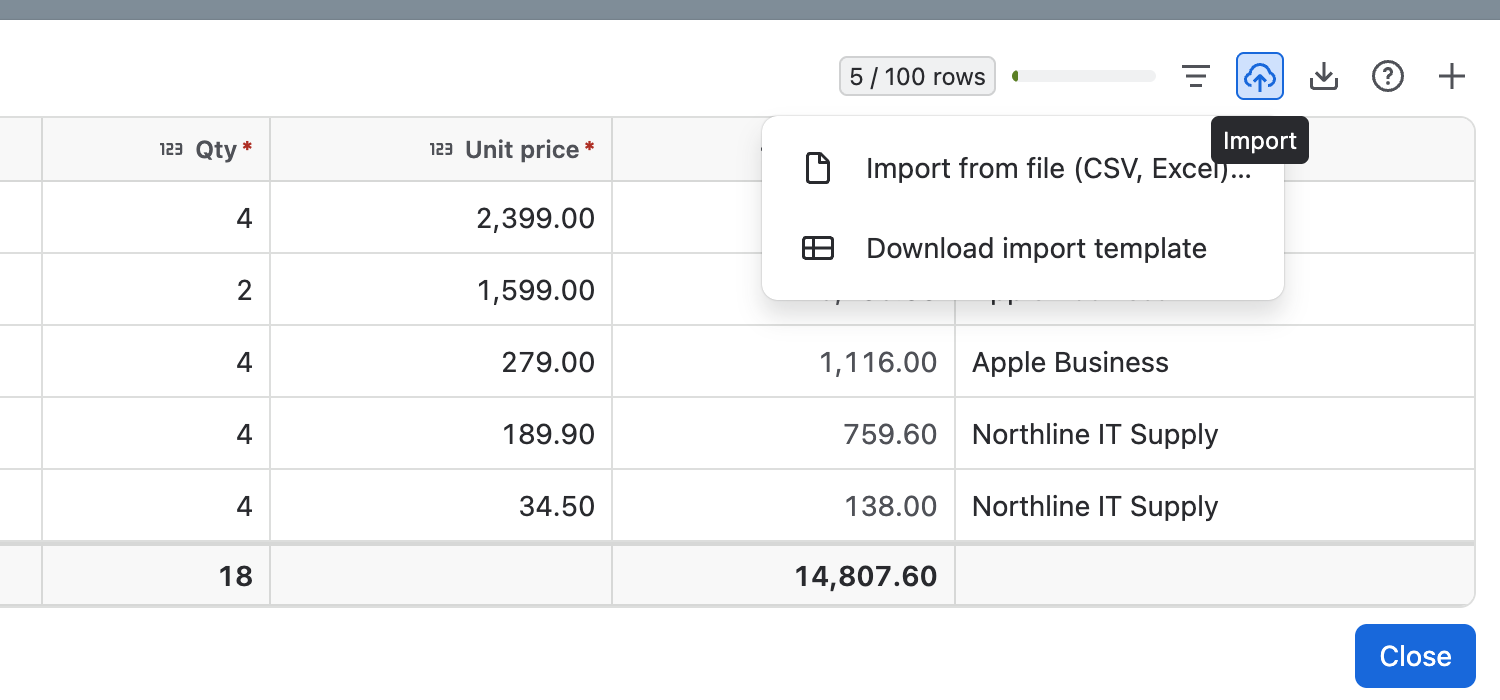
Download import template downloads a file with this table's column names as headers. Fill it in and import it, and every column is matched automatically.
Map the columns
The Import rows from a file window shows the file's rows under the table's columns.
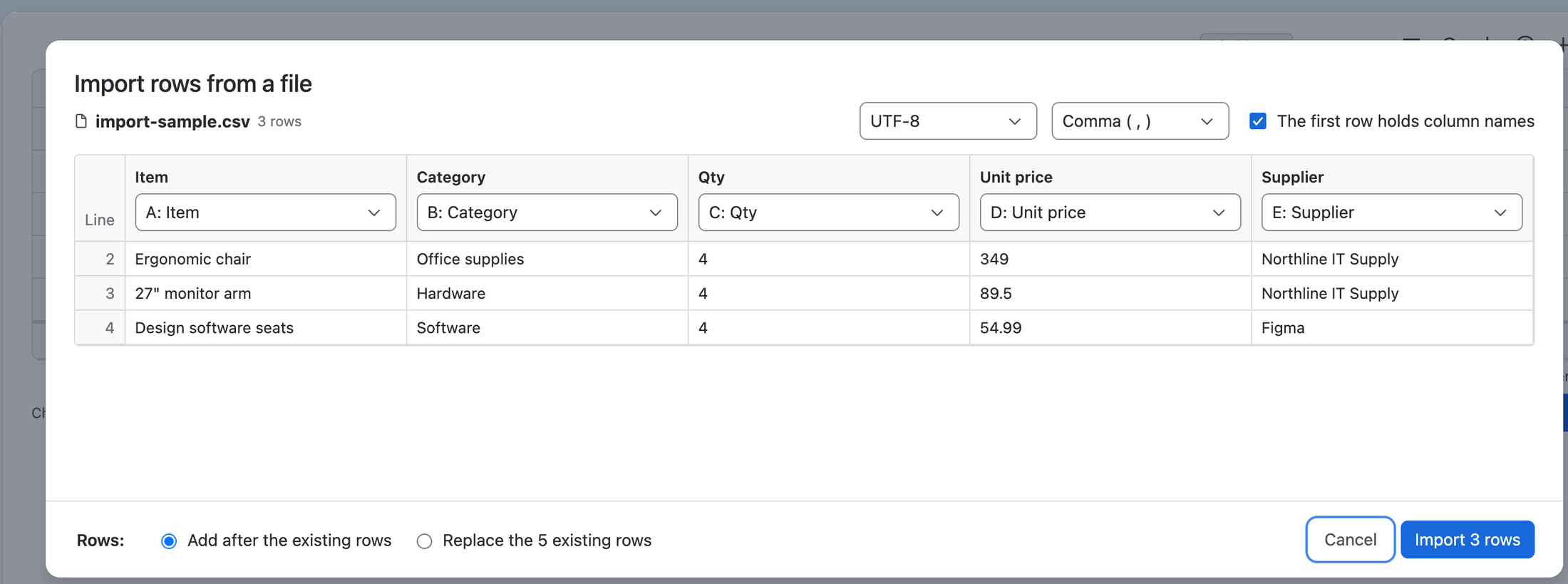
- The first row holds column names: tick it when the file has a header row. Columns with the same names as the table's are matched automatically.
- Under each table column, choose the file column that fills it, or Do not import. Formula and row-number columns are calculated and never imported.
- For CSV files, adjust Encoding and Delimiter if the preview looks wrong. For Excel files, choose the Sheet.
- Every cell is checked like typed input. Cells that cannot be read are shown in red and stay empty; point at a red cell to see why.
Add or replace rows
Under Rows, choose:
- Add after the existing rows, or
- Replace the existing rows (the window says how many will be replaced).
Then select Import N rows. If some cells cannot be read, RowCraft asks before importing them as empty cells (Import anyway).
Limits
- Rows beyond the table's maximum are left out, and the window says how many.
- If the rows would need more than the Jira field can hold, RowCraft asks you to import fewer rows.
- Rules apply: if a rule stops new rows from being added, import is not available and the editor says why.
- People and work items are looked up by name or key while importing. On forms where this is not possible, those columns are marked cannot be looked up here.