
 RowCraft – Table Fields for Jira
Using the app
RowCraft table settings, rules and default rows
Table settings apply to the whole table. Rules make columns required or read-only, stop rows from being added or deleted, or lock the table, depending on conditions. Both are enforced in the editor and by Jira on the server, so they also hold for REST API calls, automation and bulk edits.
Table settings
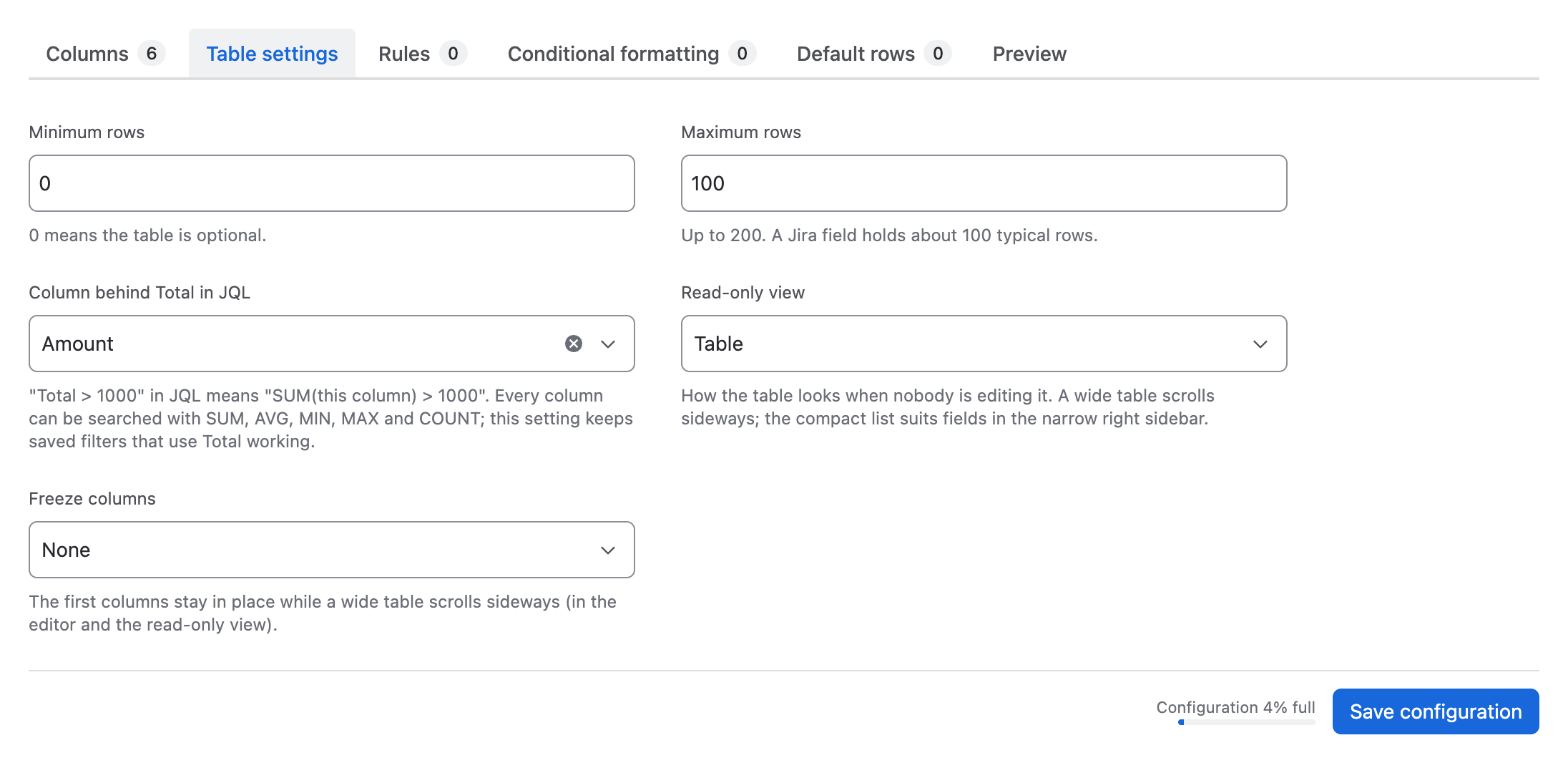
Open the Table settings tab of the column designer.
| Setting | What it does |
|---|---|
| Minimum rows | The table must have at least this many rows. 0 means the table is optional. With 1 or more, saving an empty table shows Add at least 1 row. |
| Maximum rows | Up to 200. The default is 100; a Jira field holds about 100 typical rows (32,768 characters). |
| Column behind Total in JQL | The number or formula column whose sum Total means in JQL, for example issue in rowcraftField("Purchase items", "Total > 1000"). Every column can also be searched with SUM, AVG, MIN, MAX and COUNT; this setting keeps saved filters that use Total working. |
| Read-only view | Table (default) shows the table with headers and totals; a wide table scrolls sideways. Compact list shows one line per row, which suits fields in Jira's narrow right sidebar. |
| Freeze columns | None, the first column, or the first 2, 3 … columns stay in place while a wide table scrolls sideways, in the editor and the read-only view. |
Rules
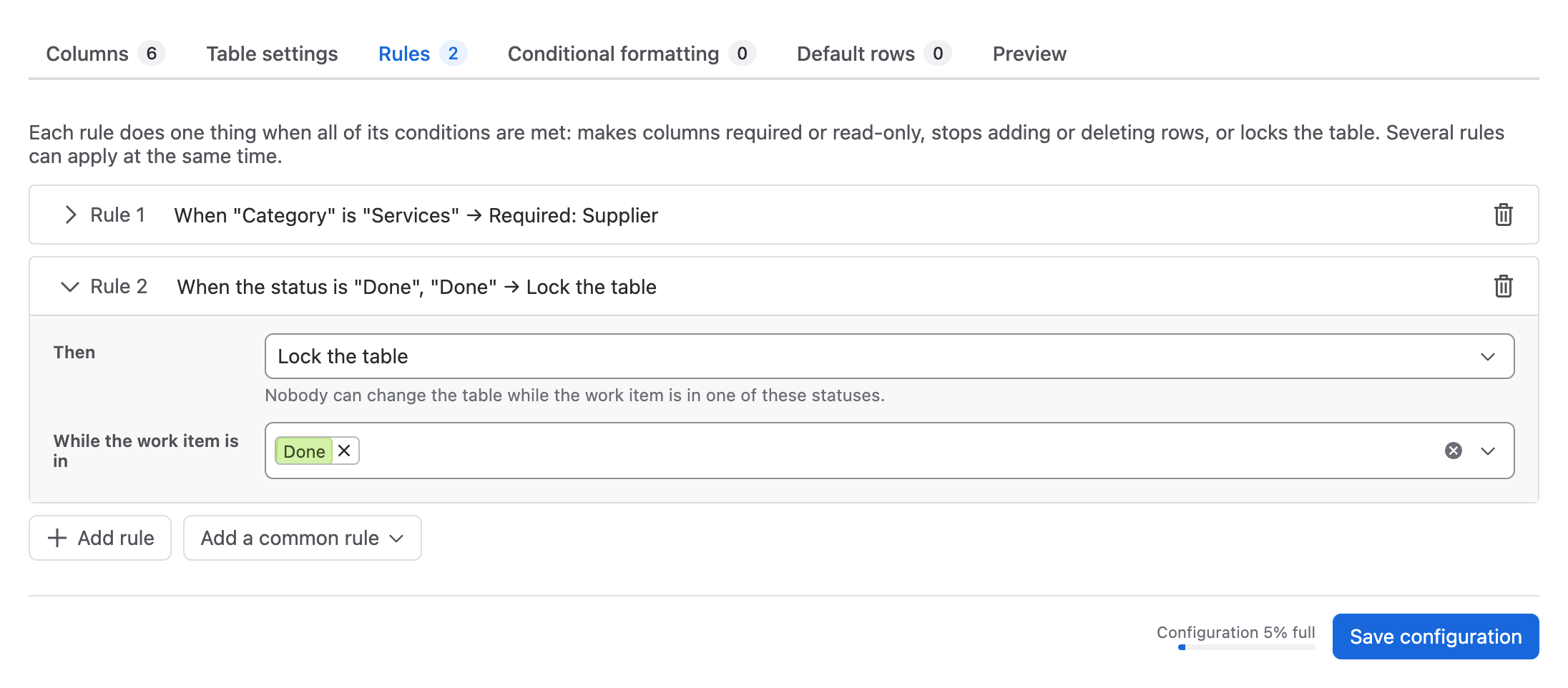
Open the Rules tab. Each rule does one thing when all of its conditions are met. Several rules can apply at the same time. A table can have up to 20 rules.
What a rule can do
| Then | Effect |
|---|---|
| Required | In rows that meet the conditions, the chosen columns cannot be empty. |
| Read-only | Values already saved in the chosen columns cannot be changed. Rows added in the same edit can still be filled in. |
| No new rows | Rows cannot be added to a saved table. A new work item, or a table with no saved rows, is not affected. |
| No deleting rows | Saved rows cannot be deleted. Rows added in the same edit can still be removed. |
| No adding or deleting rows | Both of the above. Values can still be edited. |
| Lock the table | Nobody can change the table while the work item is in one of the chosen statuses. The read-only view shows a Locked · Done lozenge. |
Columns can be chosen one by one or as All columns.
Conditions
Select Add condition to add conditions. All conditions of a rule must be met.
| Condition type | Example | Can be used with |
|---|---|---|
| Column in this row | Category is Services, Amount > 5000, Paid is checked, Supplier is empty | Required, Read-only, No deleting rows |
| Work item status | is one of Approved, Done / is none of … | Every rule |
| Current user | is in group finance / is not in group (exception), is / is not named people | Every rule except Lock |
| Project role | is in role Administrators / is not in role (exception) | Every rule except Lock |
| Always | Applies to everyone, in every status | Every rule except Lock |
- Conditions on the row's own columns use the values as saved, so each row is judged on its own: a rule never locks a whole column because one row matches.
- A create form has no status yet, so on create status is … never holds and status is not … always holds.
- Statuses are stored by ID, so renamed or translated statuses keep working. Statuses with the same name in different workflows are matched together.
Common rules
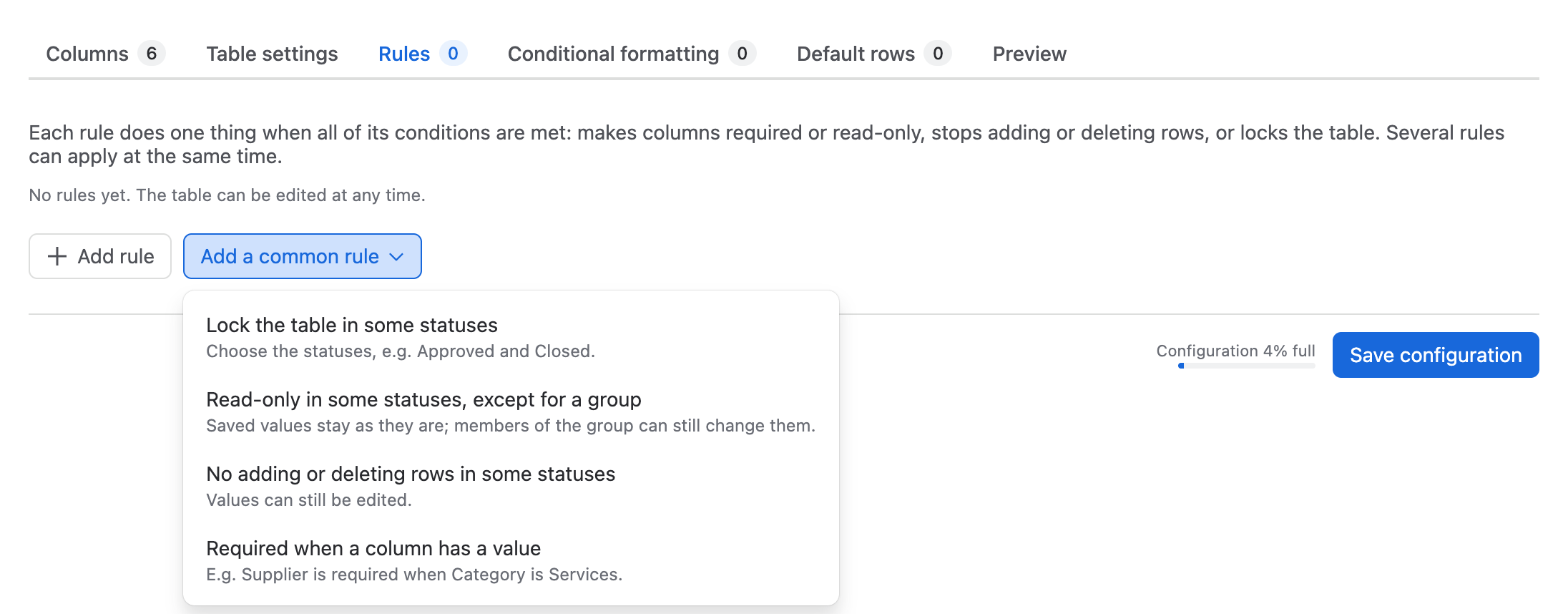
Add a common rule adds a ready-made rule that you complete:
| Common rule | Example |
|---|---|
| Lock the table in some statuses | Lock when the request is Approved or Closed. |
| Read-only in some statuses, except for a group | Saved values stay as they are; members of the group can still change them. |
| No adding or deleting rows in some statuses | Values can still be edited. |
| Required when a column has a value | Supplier is required when Category is Services. |
| Lock a saved row once a checkbox is ticked, except for a project role | A paid row cannot be changed, except by Administrators. |
| Keep a saved row once a checkbox is ticked, except for a project role | A paid row cannot be deleted, except by Administrators. |
What people see
- Required cells are flagged after the first save attempt in the issue view; on create, transition and portal forms they are flagged while people type.
- Read-only cells are greyed out; hovering shows the reason, for example Read-only: the status is Approved.
- Buttons that a rule blocks (Add row, Delete selected rows) are disabled, with the reason in their tooltip.
- A failed save lists every problem under Fix these before saving.
Default rows
Open the Default rows tab to prepare rows that a new, empty table field starts with, for example the items of a checklist. People can change or delete them. Up to 50 default rows; existing work items are not changed.
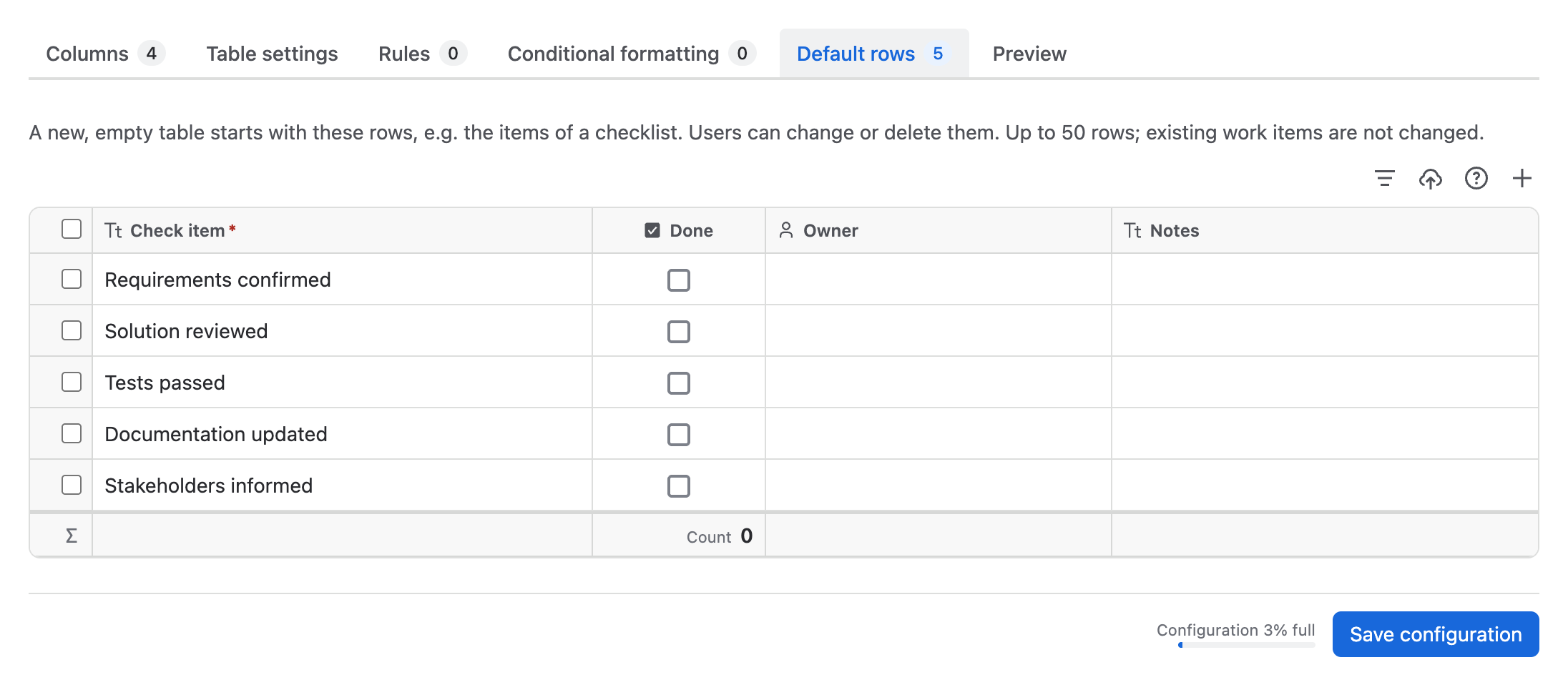
Edit the default rows in the grid just like a table on a work item: type, paste from Excel or import a file. Default rows must meet the column rules (for example required columns) to be saved.
- Default rows are filled in when the RowCraft editor opens an empty table field, for example on the create form, and are saved with the work item.
- Work items created through the REST API or automation without the editor do not get the default rows.
- Panel tables start empty; add or import their rows on the work item.