
 RowCraft – Table Fields for Jira
Using the app
View, filter and download RowCraft tables
When nobody is editing a table, the work item shows it as a read-only table. Everyone who can browse the work item can read it, sort and filter it, open it full screen and download it.
The read-only table
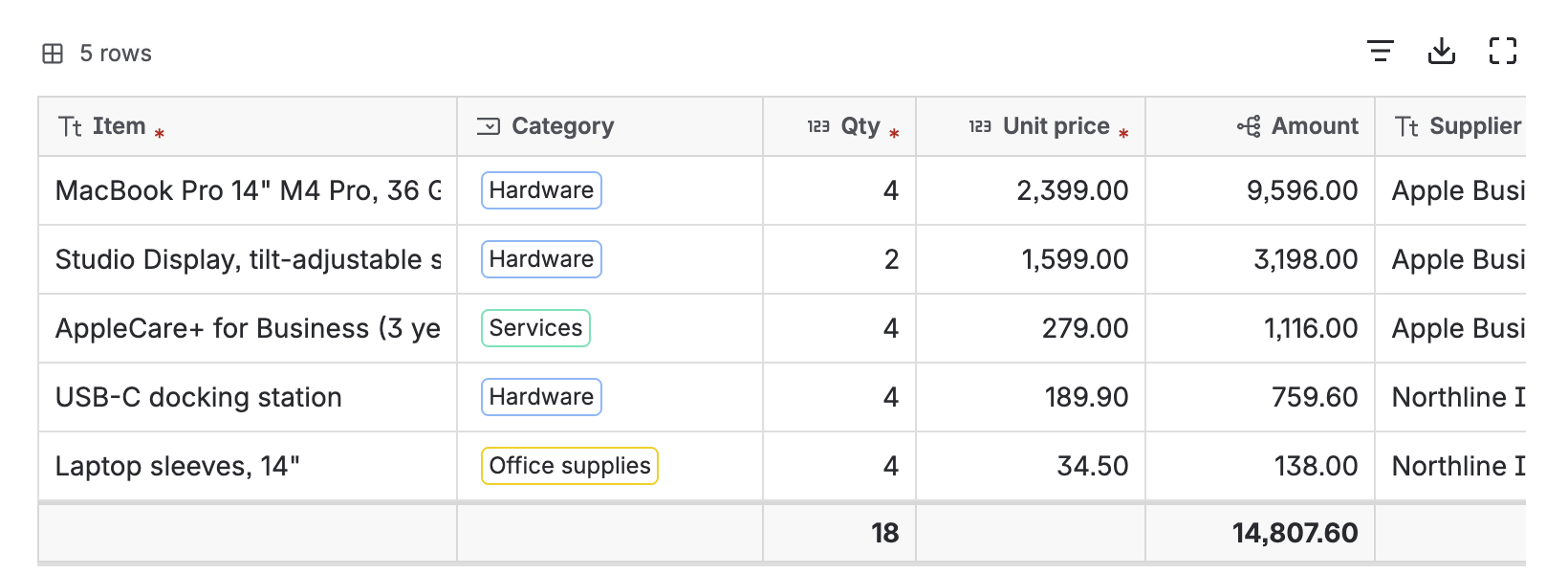
- The header shows each column's type icon and a red asterisk on required columns.
- Numbers are right-aligned and formatted with the column's decimals, prefix and suffix, in the reader's language (for example 1,234.56 in English and 1.234,56 in German).
- Select options are shown as coloured labels, people with their avatar, work items as links.
- The last row is the totals row (Σ), with the totals chosen in the column settings.
- A locked table shows a lozenge such as Locked · Done.
- Wide tables scroll sideways inside their frame; frozen columns stay in place.
For fields in Jira's narrow right sidebar, an administrator can choose the Compact list view in Table settings: one line per row instead of a grid.
In places where Jira cannot show an app's table, such as the work item list of a search, emails and Jira's History tab, RowCraft shows a one-line summary, for example 5 rows · Qty 18 · Amount 14,807.60.
Sort rows
Select a column header to sort by that column; select it again to reverse the order. The arrow shows the sorted column. Sorting only changes what you see; the saved order of the rows does not change.
Filter rows
Select the Filter icon above the table. Filter by shows one condition per column:
| Column type | Filter |
|---|---|
| Text, Long text, Work item | Contains… |
| Select list, Multi select | All, or the options to show |
| User | The people to show |
| Number, Formula | Lowest and highest value |
| Date | From and to |
| Checkbox | All, Checked or Not checked |
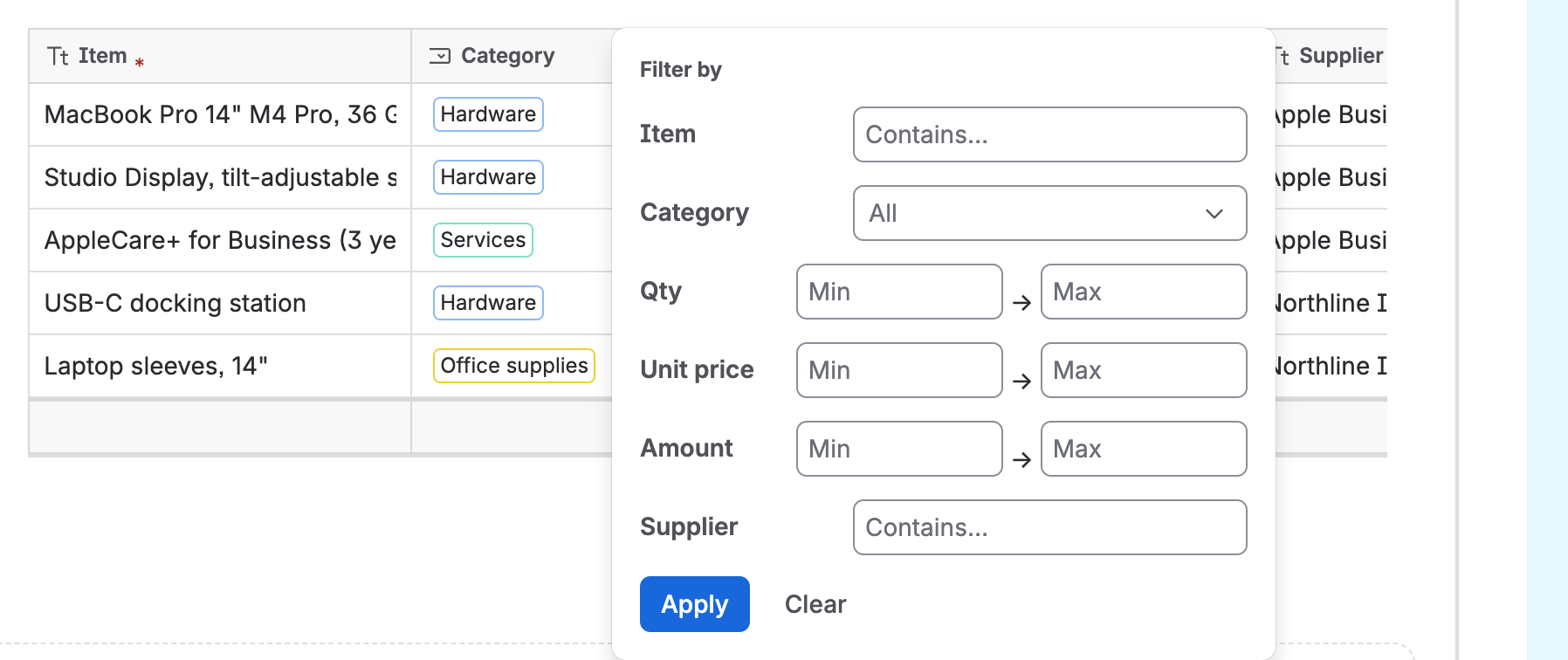
Select Apply. The table shows Showing N of M rows, and the Filter icon stays highlighted while a filter is active. Clear removes the filter. Filtering only changes what you see and is not saved with the work item.
The editor has the same Filter button, so you can edit just the rows you are interested in.
Open full screen
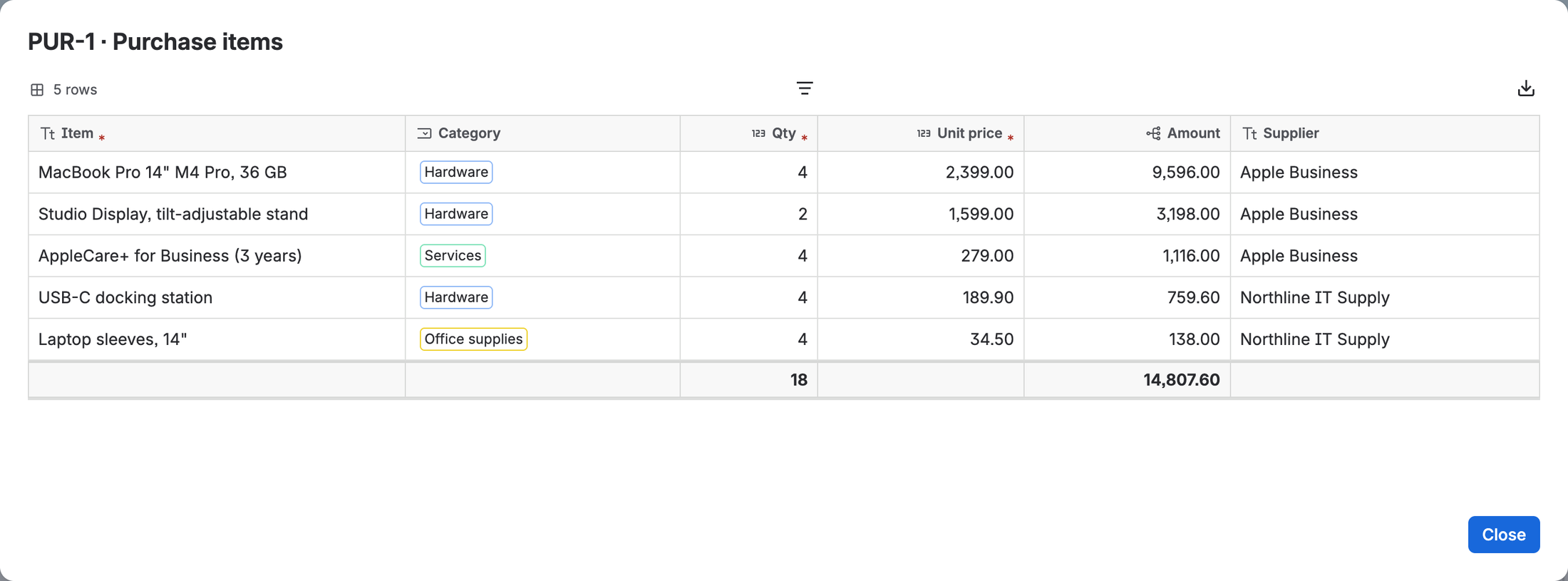
Select the Full screen icon to open the table in a large window, titled with the work item key and table name. Long texts get more room, and the window has its own Filter and Download buttons.
Download as Excel or CSV
Select the Download icon and choose a format. The editor and the large editor have the same Download button.
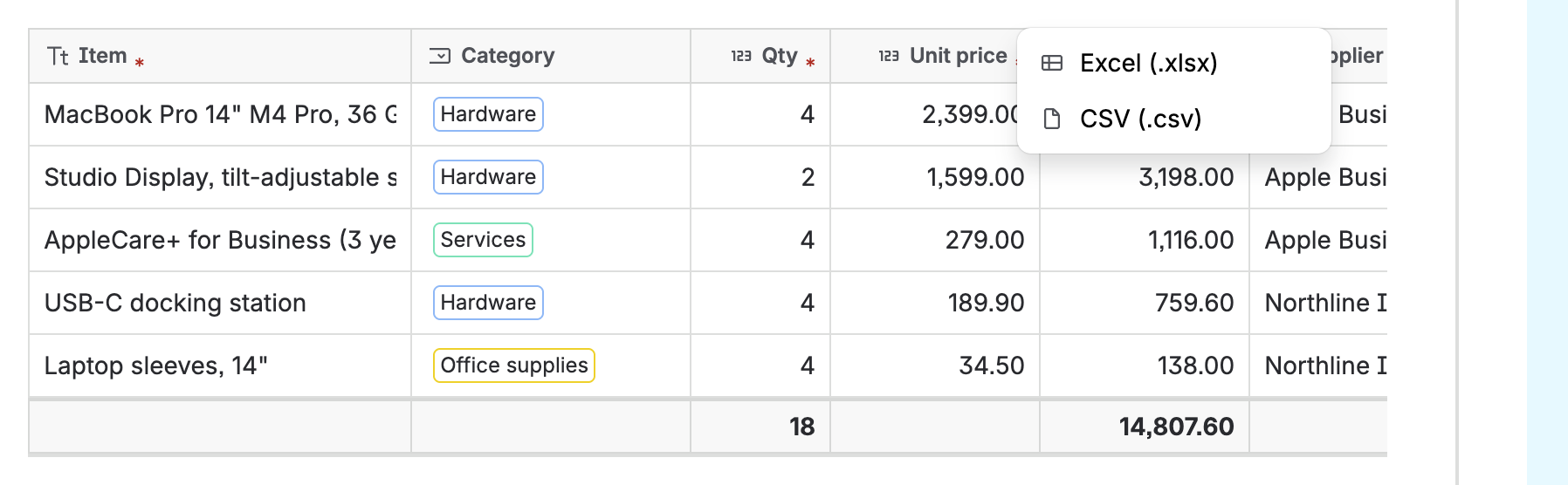
| Excel (.xlsx) | CSV (.csv) | |
|---|---|---|
| Header | Bold, frozen first row | First row |
| Numbers | Real numbers with the column's decimals, prefix and suffix as number format | Machine-readable numbers |
| Dates | Real Excel dates | ISO dates (YYYY-MM-DD) |
| Totals | A totals row with live Excel formulas | — |
| Colours | Option colours and conditional formatting as cell colours | — |
| Encoding | — | UTF-8 with BOM, so Excel opens accents and Chinese correctly |
Files are named after the work item and the table, for example PUR-1 Purchase items.xlsx. Text cells that start with =, +, - or @ are exported with a leading apostrophe, so that spreadsheet programs do not run them as formulas.