
 RowCraft – Table Fields for Jira
Using the app
Automate RowCraft tables with Jira Automation
Use RowCraft actions in Jira Automation to work with table rows when a rule runs. The actions support both table fields and panel tables. For example, add an expense line when a work item is created, update the matching checklist row, or read a table before a later rule step.
Choose an action
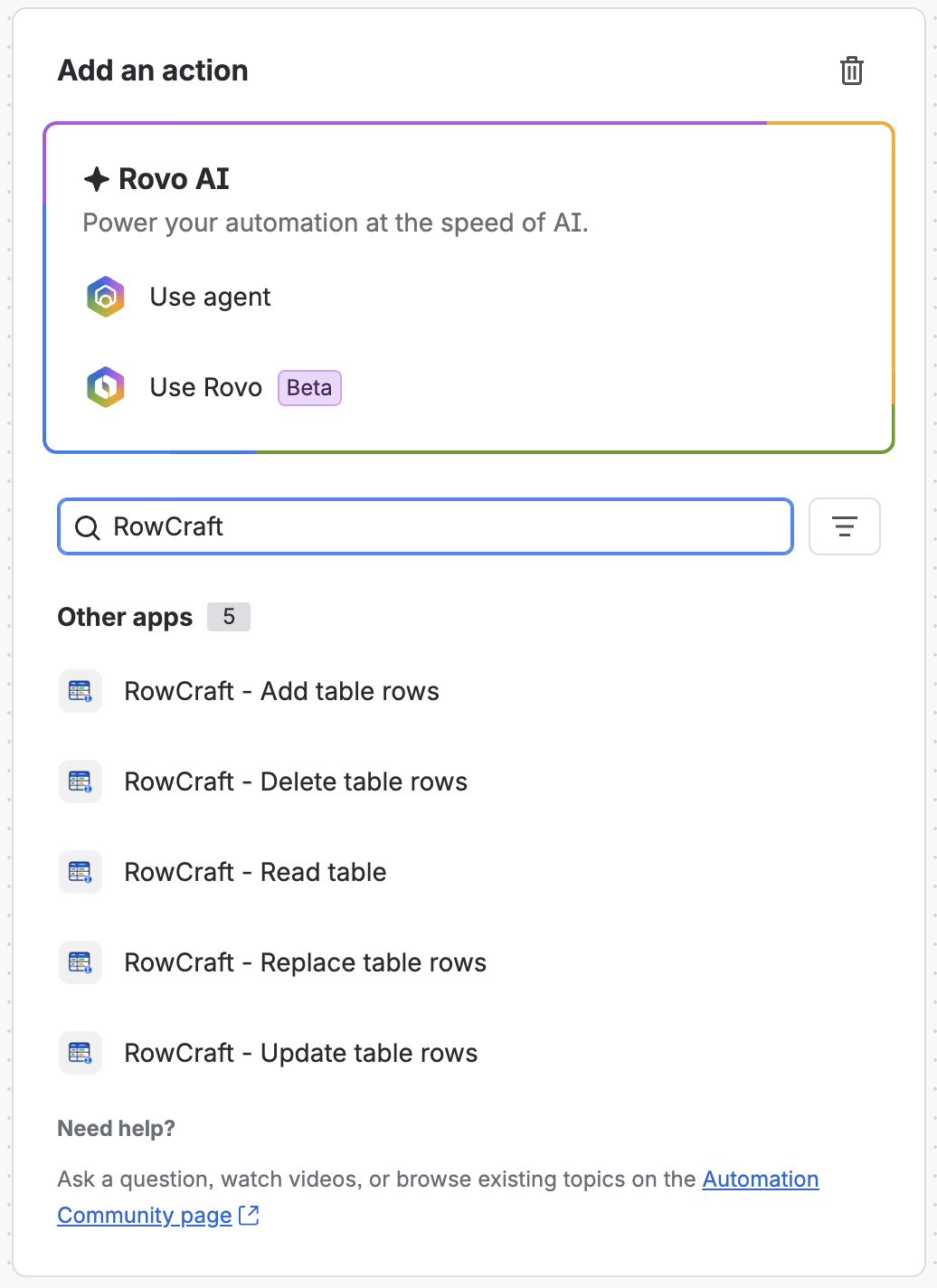
In a Jira Automation rule, add an action and search for RowCraft under other apps. The action names are always shown in English; the action's settings follow the language of the person editing the rule.
| Action | What it does |
|---|---|
| RowCraft - Add table rows | Appends one or more rows. |
| RowCraft - Update table rows | Changes selected columns in matching rows. |
| RowCraft - Delete table rows | Deletes matching rows. |
| RowCraft - Replace table rows | Replaces all rows with the supplied rows; an empty list clears the table. |
| RowCraft - Read table | Reads the table without changing it and provides values to later steps. |
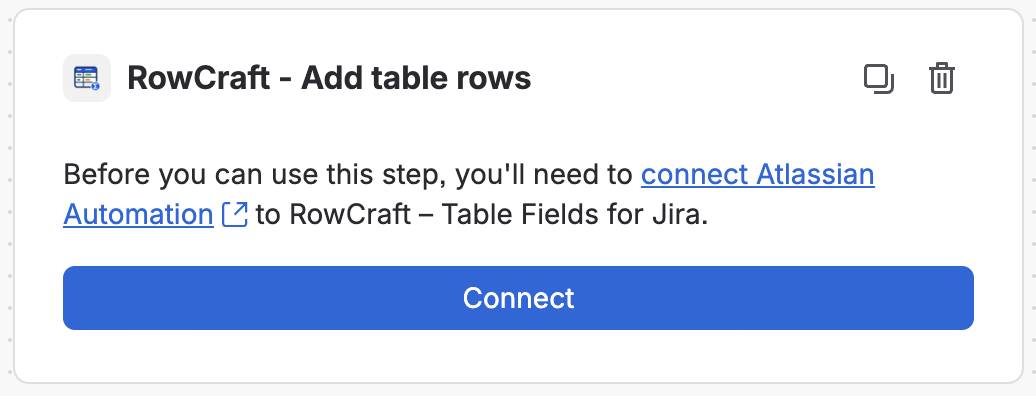
The first time you add a RowCraft action, Jira Automation asks you to Connect it. Each action then asks for a Table and a Work item. The default {{issue.key}} is the work item the rule runs on; you can use a different key or a smart value such as {{issue.parent.key}}.
Add or change rows
- Select the table field or panel table and the work item.
- For updates or deletions, choose which rows: Rows where every condition holds, Row number or All rows.
- To enter one row, use One row, a box per column and type fixed values or Jira smart values. Formula and row number columns are calculated by RowCraft and have no box.
- To add or replace several rows, use JSON (several rows). Select Insert an example for the chosen table; the keys are its column names. When a smart value inside JSON may contain quotes or line breaks, append
.jsonEncode, for example{{issue.summary.jsonEncode}}. - Finish configuring the step, save the rule and test it on a work item. When you change an action in a rule that is already saved, select Next at the bottom of the action's settings before saving the rule.
What an empty box means depends on the action:
- Add and Replace: an empty box takes the column's default value for new rows.
- Update: an empty box leaves that cell unchanged. To clear a cell, use JSON with
null.
Replace in the box-per-column form leaves the table with exactly that one row. If every box is empty, Replace clears the table.
For example, to add two rows to a table with Item, Category and Qty columns, use JSON like this (replace the names and values with those of your table):
[
  { "Item": "Laptop stand", "Category": "Office supplies", "Qty": 2 },
  { "Item": "USB-C cable", "Category": "Hardware", "Qty": 4 }
]
Choose the rows to update or delete
- Rows where every condition holds: up to three conditions of the form Column = Value. Text is compared without regard to upper and lower case or surrounding spaces. Formula columns can be used in conditions; to pick by position, use Row number instead.
- Row number: 1 is the first row, -1 the last, -2 the one before it. A row number beyond the end of the table counts as no match.
- All rows: every row of the table.
Update writes the same new values into every matching row. In JSON form, Update takes a single object with the cells to change, not a list.
Only Update has When no row matches:
| Choice | Result |
|---|---|
| Do nothing and go on (default) | The rule continues; nothing changes. |
| Stop the rule with an error | The rule stops, and the audit log names the condition. |
| Add a row with the conditions and the new values | A new row gets the condition values and the new values. |
Delete with no matching row succeeds without changing anything and reports changedRows 0.
Value formats
| Column type | Value |
|---|---|
| Number | A number, such as 1200.50 |
| Date | 2026-12-31, or a smart value such as {{now.jiraDate}} |
| Checkbox | true or false; also yes/no, 1/0, x and ✓. Empty means unchecked. |
| Select | The option's name. An option taken from a Jira field can also use its option ID. |
| Multi select | Option names separated by commas; in JSON also an array |
| User | An account ID ({{initiator.accountId}}), an email address or a full name. If several people match a name, the action stops and asks for the account ID or email. |
| Work item | A work item key, such as {{issue.key}}, or a link to it |
Column names are matched without regard to case. People are looked up as the rule's connected user, so only people that user can see are found. RowCraft checks each value against the column's settings and the target work item. One action can supply up to 1,000 rows; the table's own maximum still applies.
Use results in later steps
Read table provides rowCount, rowsJson and totalsJson. Write actions provide rowCount (rows after saving) and changedRows (rows added, changed or deleted; for Replace, the number of rows the table now has).
rowsJsonlists every row keyed by column name, plus a#key with the row number. Numbers stay numbers; other cells contain the text the table shows, and empty cells arenull.totalsJsoncontains only the columns that have a total.
The smart value prefix is generated by Jira Automation; for Read table it is, for example, {{fetchedRowcraftTable.rowCount}}. Open the smart value panel to see the exact names. Use Jira's jsonStringToObject() when a later step needs to work with the JSON as values.
Permissions and troubleshooting
- Actions run as the rule's connected user. That user must be able to browse the work item and, for changes, edit it. Table rules, required values, locks and column permissions apply as if that user edited the table. A table field must also be on the work item's edit screen.
- Changes to a table field appear in the work item's history as an edit by the connected user. Changes to a panel table appear in its table history.
- The table must apply to the work item's project and work type. If a field has several contexts, the settings list the columns of all contexts, but only the columns of the work item's own context can be written.
- The actions require an active RowCraft licence. When an action fails, the rule's audit log shows the reason, such as an unknown column or invalid value, in the connected user's language.
- RowCraft recalculates formulas, totals, search data and totals written to Jira fields when an action saves. If someone edits the same table at the same moment, the action re-reads the table and tries again, up to three times; after that, the audit log says The table kept changing while the action ran; run the rule again.