
 Compare Any Two Pages
Using the app
Compare the Current Confluence Page
Compare the current page with your previous visit, or use Compare this page to choose the content and versions yourself.
Compare with your previous visit
Available from version 5.0.0 for published standard Confluence pages.
- Open the page. The app automatically records your visit time and the current published version.
- Below the page title, find the entry showing your previous visit's version and date. Hover over it to see the full time.
- Select the entry to compare that version with the current version in Unified or Side-by-side view.
On your first recorded visit, the entry shows No previous visit. The current version and time are saved for your next visit. Refreshing the page updates the visit record; opening or closing the comparison dialog does not.
Open Compare this page
- Open the content you want to compare.
- In the upper-right corner, select More actions (•••).
- Open the Apps group if Confluence shows one, then select Compare this page.
Choose what to compare
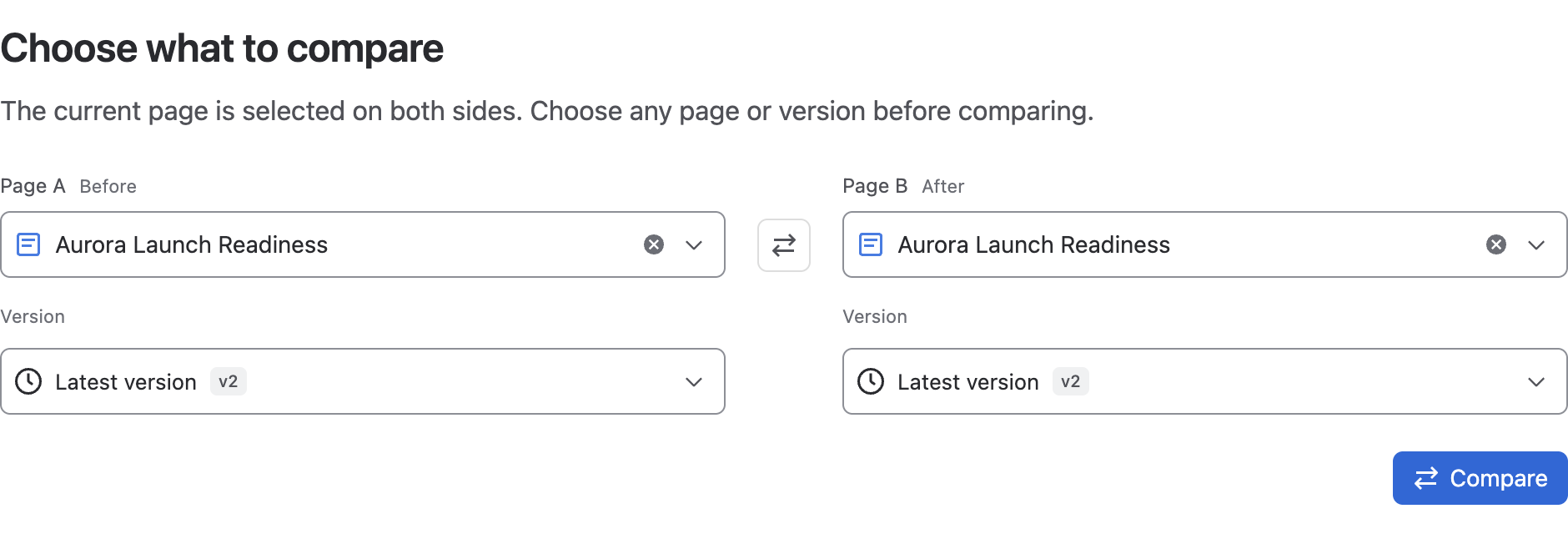
Compare Any Two Pages opens in a Confluence content-action dialog. The current content is preselected on both sides, so the initial pair represents the same current page and Latest version on both sides.
| Control | What it does |
|---|---|
| Close comparison | Closes the content-action dialog and returns to the Confluence page. |
| Page A · Before | Starts with the current content. Replace it only when another page should be the baseline. |
| Page A Version | Choose an older numbered version to review how the current page changed over time. |
| Swap Page A and Page B | Swaps both pages and version choices when the direction is reversed. |
| Page B · After | Starts with the current content. Keep it on Latest version for the usual historical-versus-current review. |
| Compare | Opens the same results workspace used by the app-page entry. |
For the most common current-page comparison, leave the current page selected on both sides, choose an older numbered version under Page A, keep Page B on Latest version, then select Compare.
You can also change one side to:
- Another Page, Live doc, or Blog post.
- An older version of the current content.
- The latest version while the other side stays fixed to a historical version.
Then select Compare.
When this entry is the better choice
- You noticed a page while reviewing Confluence and want to compare it immediately.
- You want to inspect how the current page changed over time.
- You want the current content selected without searching for it again.