
 Compare Any Two Pages
Using the app
Show Changes on a Confluence Page
Add the Page changes macro to a Confluence page so readers can see what changed where they are already reading. The author chooses the comparison range; readers can expand the result on the page or open a larger comparison window.
Add the macro
- Edit the page where you want readers to see changes.
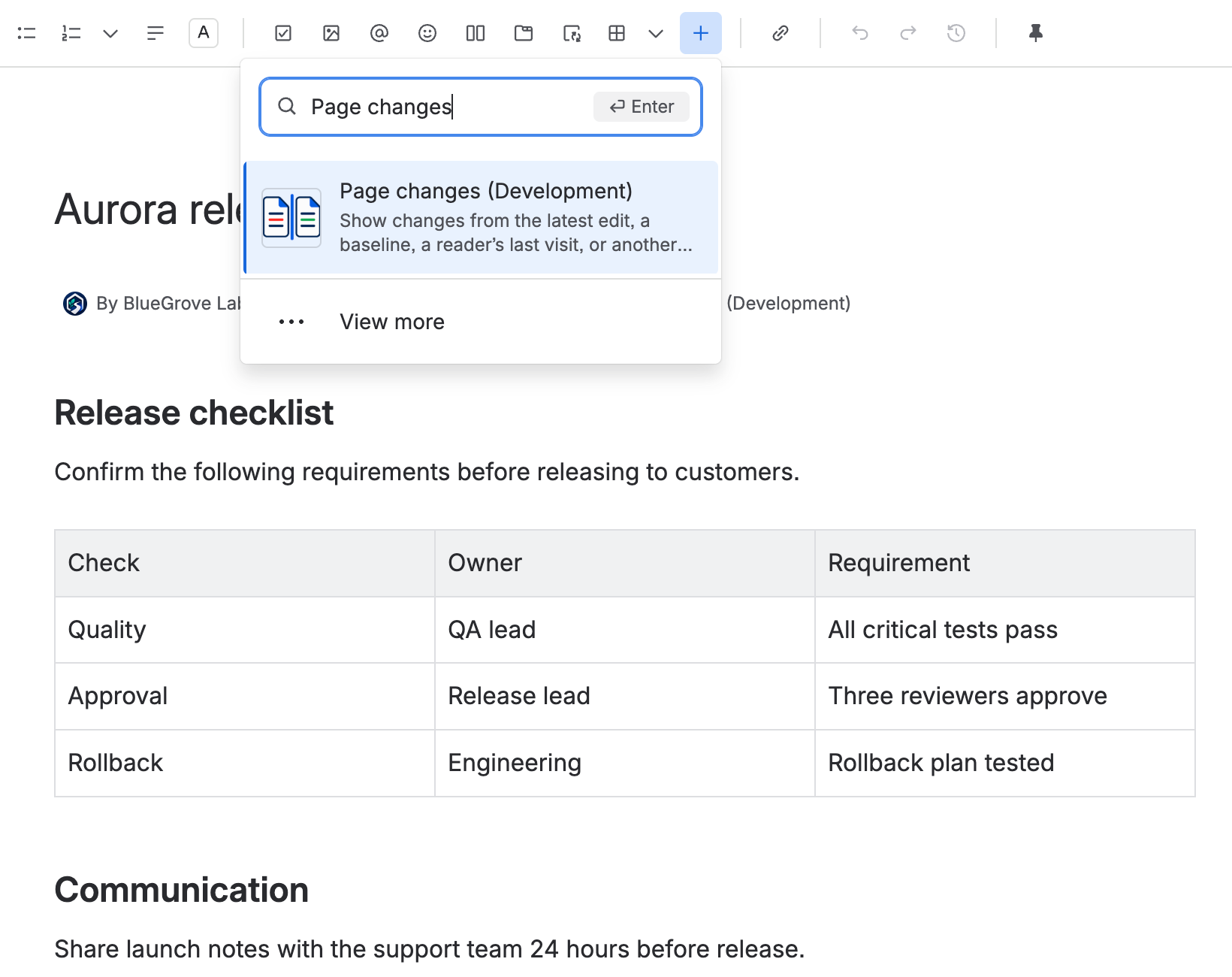
- Open Insert elements in the editor toolbar and search for Page changes. You can also find it in the full element browser.
- Select the macro to open Page changes settings.
- Choose what to compare. Keep Latest edit for a simple summary of the most recent update.
- Select Save, then publish or update the Confluence page.
Saving the macro settings does not publish a standard page or blog post. In their editors, the macro shows a short placeholder until you publish the content. Live docs use their saved content and do not have this publishing step.
The comparison covers the whole page body, not just the section below the macro. The Page changes macro and its settings are excluded from the comparison, so inserting or reconfiguring it does not count as a body change.
Choose a comparison range
| Setting | What readers see | Use it for |
|---|---|---|
| Latest edit | The newest version compared with the previous available version. | A quick review of the last update. |
| Since a baseline version | A fixed version of this page compared with its newest version. | Changes since a release review or agreed milestone. |
| Since each reader's last visit | That reader’s previous recorded version compared with the version recorded on this visit. | Catching up on changes since you last opened the page. |
| Compare with another page | A reference page compared with the page containing the macro. | Checking a project document against a standard. Set up a reference page. |
The first two modes work with standard pages, blog posts, and Live docs. The previous-visit mode is only available for published standard pages. All modes compare readable, published or saved content; they do not compare unpublished drafts or follow every keystroke.
Keep a fixed baseline
- Select Since a baseline version.
- Choose the page version readers should compare against.
- Optionally add a Baseline label, such as “Release review”.
- Select Save, then update the page.
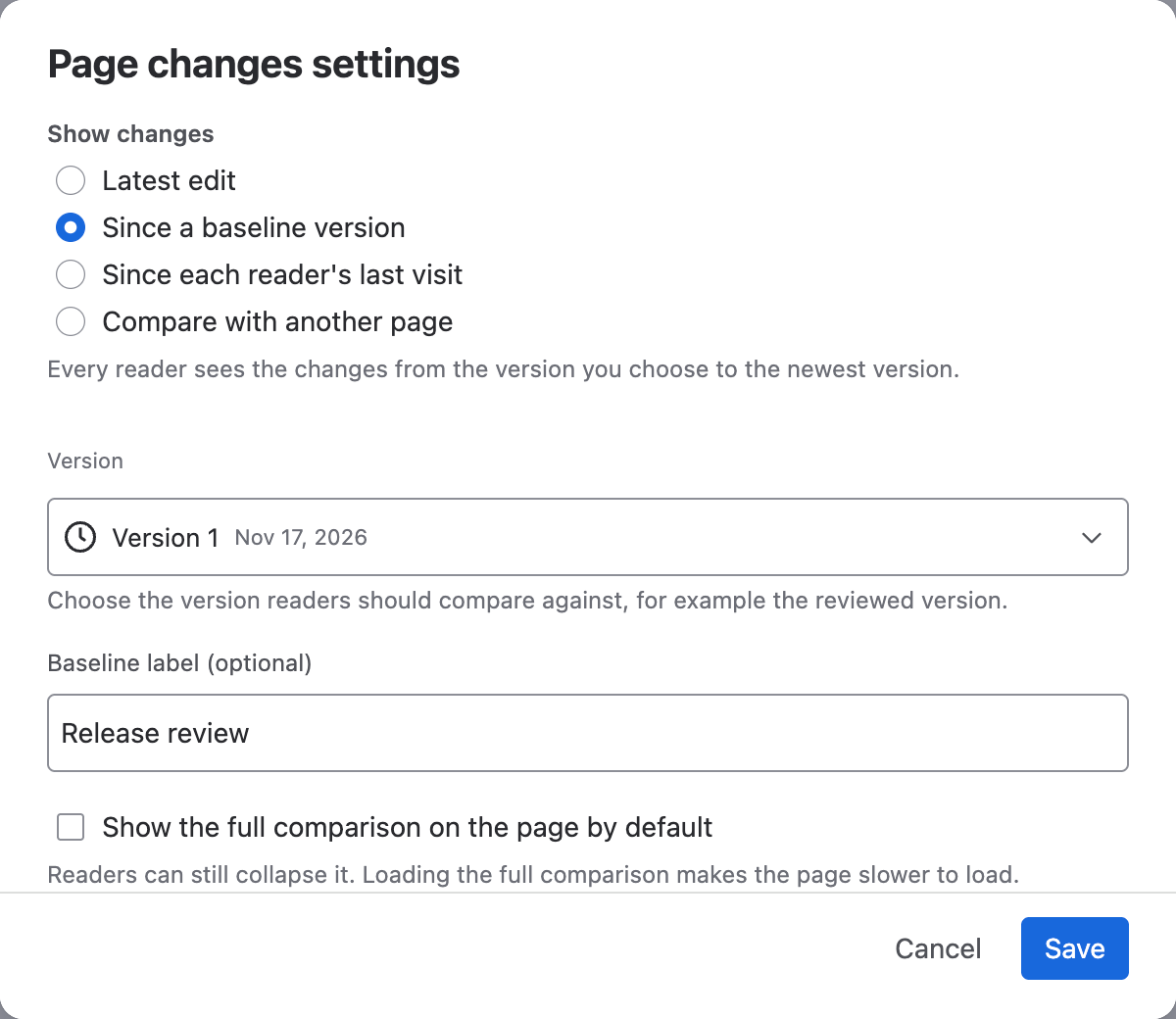
For example, a v1 baseline stays at v1 when the page reaches v2 or v3. Latest version in this setting is also pinned to a number when saved; it does not keep moving forward. The label is an optional description, not an approval or signature.
A new page needs a published version before you can choose a baseline. If you copy the macro to another page, edit it and choose a baseline from that new page’s own history.
Show each reader’s changes
Choose Since each reader's last visit to give each reader their own range. A reader whose previous recorded visit was at v1 sees v1 → v3 when they next open v3. Someone who last visited v2 sees v2 → v3 instead.
The first recorded visit establishes a starting point and shows an explanatory message. Opening or refreshing the page records a new visit: refreshing v3 again can therefore show “No new version since your last visit.” Expanding, collapsing, opening, or closing the comparison does not advance that record.
To keep a particular result for later, open the full comparison and copy its share link before refreshing. Use a fixed baseline when the whole team needs the same starting point. A visit record does not mean the reader has read or approved the changes.
Read changes on the page
Each macro shows its mode, available author or visit information, and a change count. Several macro instances can use different settings on the same page.
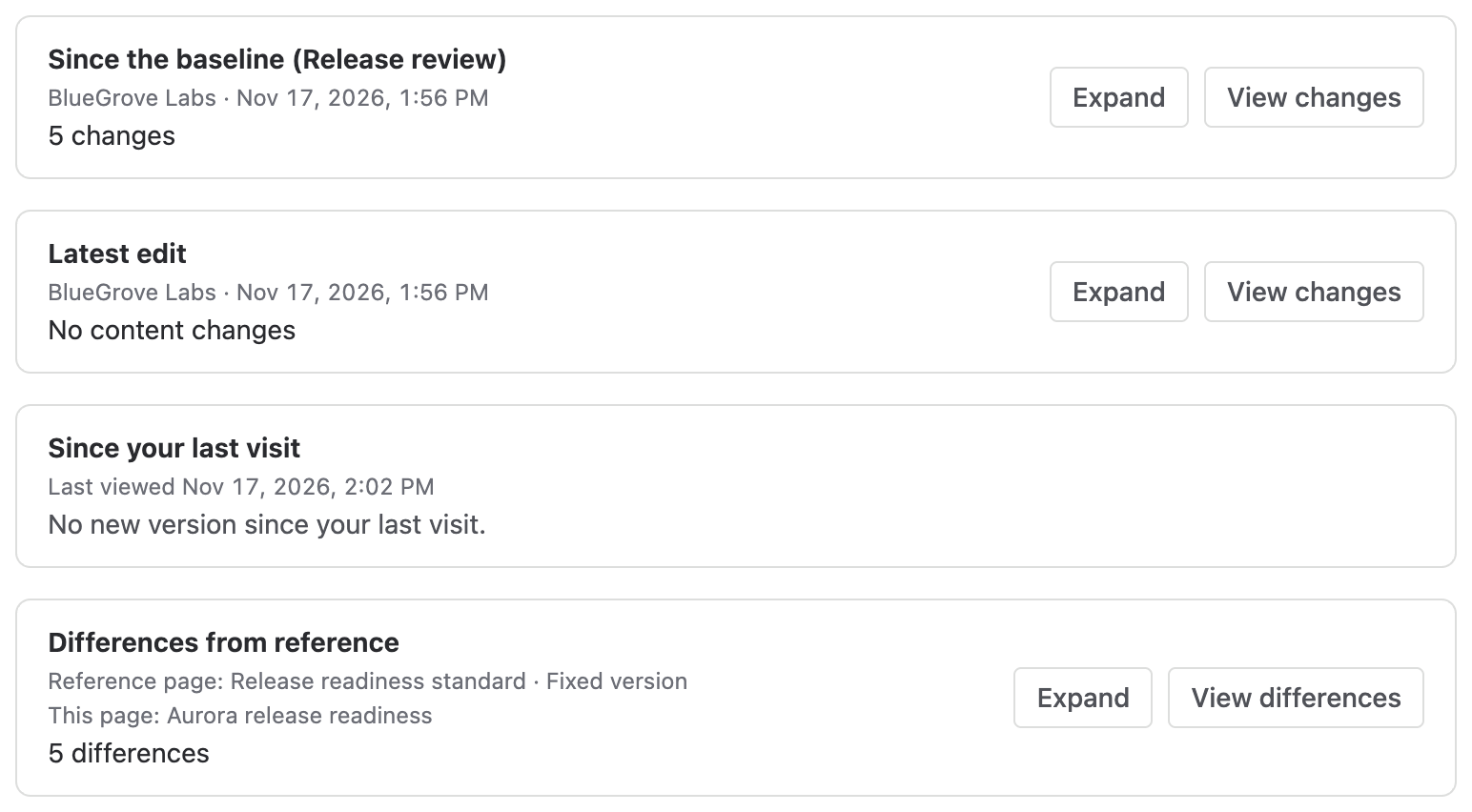
- Select Expand to read within the page, or Collapse to return to the card.
- Select View changes to open the full comparison. Reference comparisons use View differences.
- Switch between Unified and Side by side, then use Previous change and Next change to move through the highlights.
- Use Sync scroll in Side by side to keep the two reading panes aligned.
The card and inline result keep version numbers and advanced tools out of the reading area. Open the full comparison to inspect the actual versions, choose another version, share the result, or export a PDF. See Read comparison results.
You can enable Show the full comparison on the page by default in the macro settings. Readers can still collapse it. This loads the full result when the page opens and can make a long page or a page with several macros slower to load.
Temporarily inspect other versions
In the full comparison, select a version beside either page title. This only changes the current window. When the range differs from the macro’s range, select Restore macro comparison to return to the original page pair, direction, and versions.
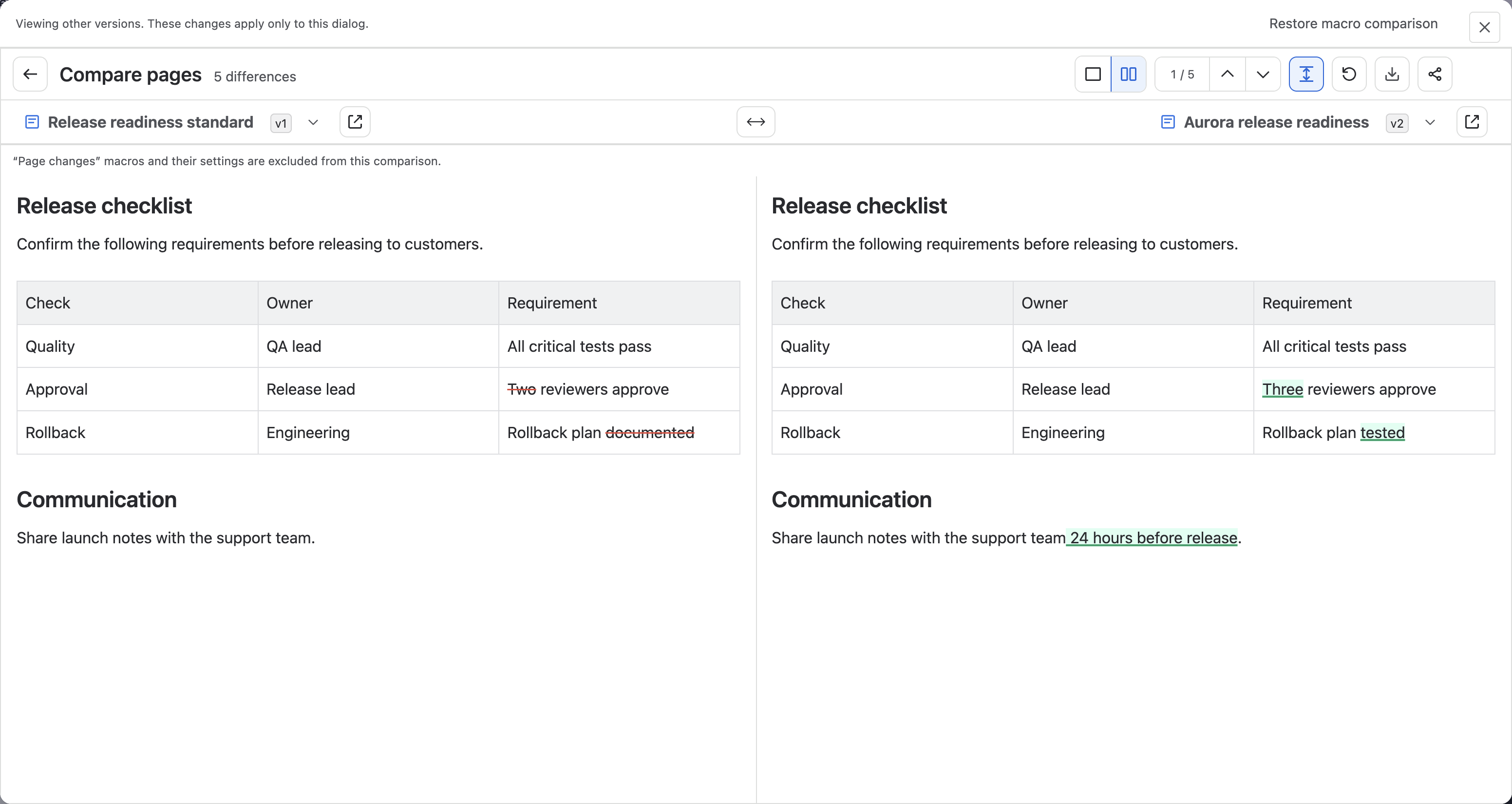
Closing the window and opening it again also restores the card’s range. To change the macro permanently, edit the Confluence page, select the macro, choose its Edit action, and save the settings before updating the page.
Understand empty results
| Message | Meaning | Next step |
|---|---|---|
| No content changes | Two page versions were compared without a body difference. | You can still open the result. |
| No differences found | The reference and current page were compared without a difference. | You can still open the result. |
| First version message | There is no earlier page version to compare. | Publish a later update before using Latest edit. |
| No new version since the baseline | The baseline is already the latest version. | Wait for a later update or choose an earlier baseline. |
| No new version since your last visit | The previous and current visits recorded the same version. | No comparison is offered by this macro at that point. |
| First recorded visit message | This reader has no earlier visit record. | Return after another page update. |
Counts describe highlighted ranges, not editing sessions or words changed. A text replacement can include both a removal and an addition. Image reuploads or unavailable previews can make a card’s count differ from the full result; use the full result for review.
Access and saved copies
Readers use their own Confluence permissions. A missing or inaccessible page or version is shown as unavailable, never as an empty document or a successful zero-difference result. If a baseline is unavailable, the author must select another one; the macro does not silently substitute it.
Live doc saves can be combined into one history version. A new save does not always create a new comparison range. A macro viewed on a historical Confluence page is not an archived picture of its result at that time.
To save highlighted differences, use Export → Export PDF in the full comparison. Confluence’s own page PDF or Word export uses a static macro note instead of the interactive result or a particular reader’s visit comparison. Use the full comparison’s PDF export when you need a copy of the differences.