
 Compare Any Two Pages
Using the app
Compare a Confluence Page with a Reference
Use Compare with another page in the Page changes macro to show how the current page differs from a standard, template, or related document. Readers can review those differences without selecting the two pages themselves.
In this example, Release readiness standard is the reference and Aurora release readiness is the current page. The reference requires two reviewers; Aurora requires three and adds a 24-hour notice period. The comparison highlights those differences. It does not decide whether a difference is acceptable or change either document.
Configure the reference
- Edit the page that should display the comparison: Aurora release readiness in this example.
- Insert Page changes, or select an existing macro and choose Edit. See Add the macro.
- Select Compare with another page.
- In Reference page (Before), search by title, paste a Confluence URL, or enter a content ID. Select the intended result.
- Choose Follow latest or Fixed version for the reference.
- Optionally enable Show the full comparison on the page by default.
- Select Save, then publish or update the Confluence page.
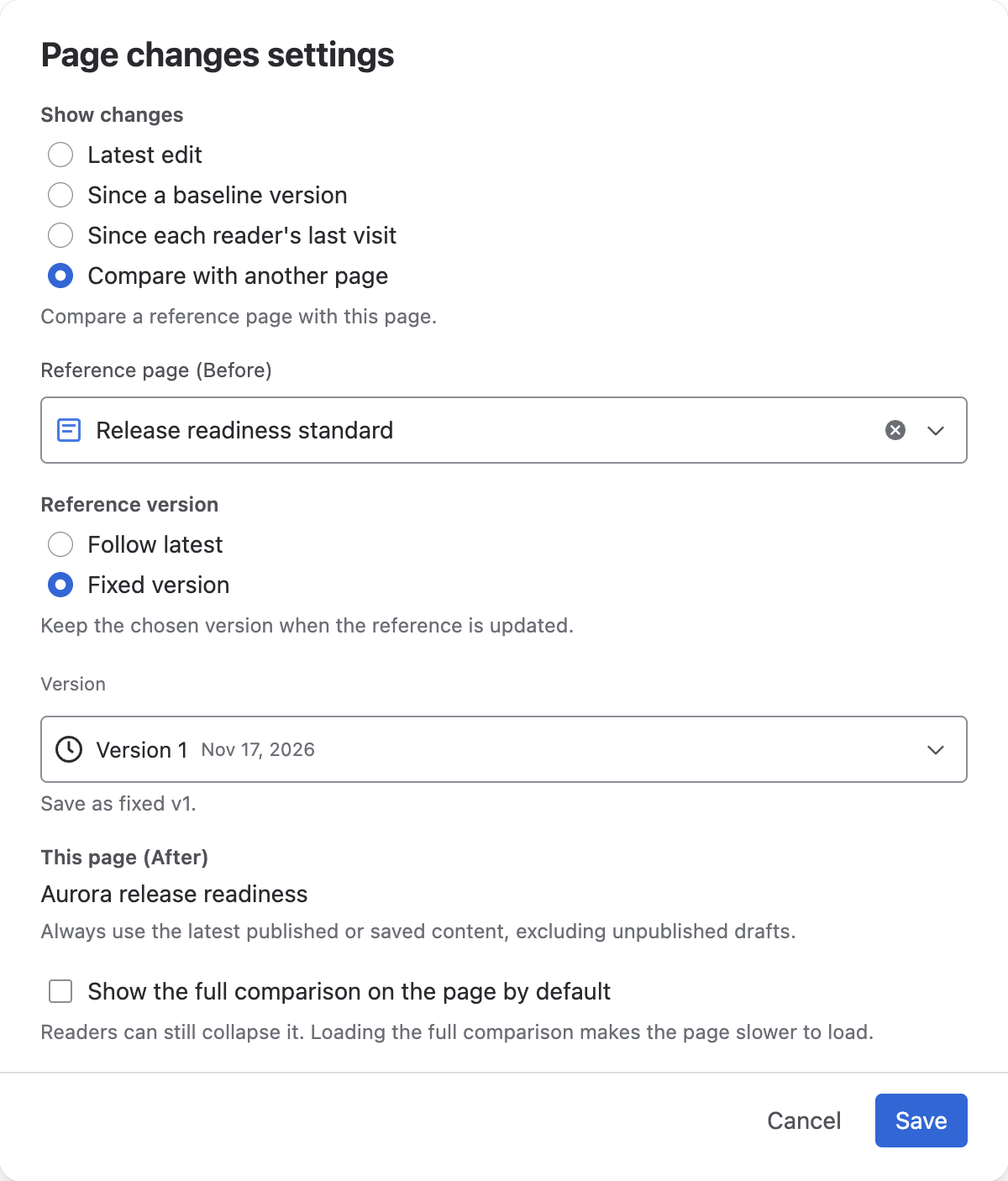
The current page is selected automatically; there is no second page picker in the macro settings. The reference must be a different supported page, blog post, or Live doc on the same Confluence site. It may be in another space if the reader can access it.
Follow updates or pin a version
| Reference setting | What happens | Suitable for |
|---|---|---|
| Follow latest | Each page load resolves the reference’s newest available version. | Checking against a standard that is maintained over time. |
| Fixed version | The reference keeps the numbered version selected when the settings are saved. | Reviewing against a particular release or milestone. |
When using Fixed version, selecting Latest version still saves the current number. For example, saving Latest version while the reference is at v1 pins v1 even after v2 is published. To keep following updates, select Follow latest instead.
The current page uses its latest readable published or saved content when the card loads. Expanding a card or opening its comparison uses that card’s resolved versions; it does not check for another update. Reload the Confluence page to load a new pair. Live doc saves do not always create separate history versions.
Review the differences
The card shows the reference name, its version strategy, the current page, and the number of differences. Select Expand to read inline or View differences to open the full comparison.
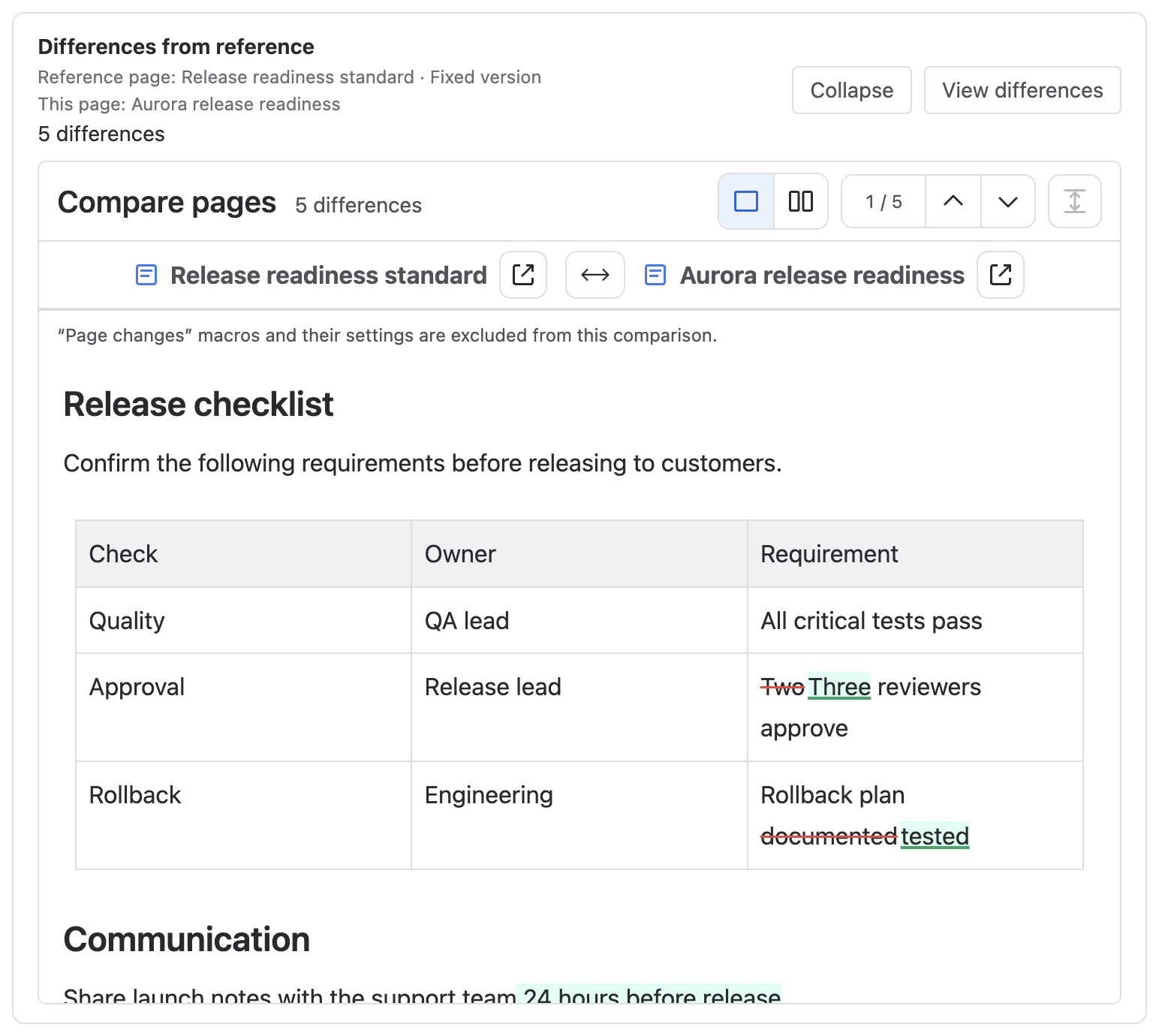
Choose Unified for one combined reading area or Side by side for two panes. Use Previous change and Next change to review the highlights. In Side by side, Sync scroll keeps the two panes aligned.
The macro compares the whole body of both pages. Its own Page changes macros and settings are excluded, and the result explains that exclusion when applicable. Other supported page content remains part of the comparison.
No differences found means both pages were compared successfully without a difference; readers can still open that result. An inaccessible reference or version produces an unavailable message, not a zero-difference result.
Swap the comparison direction
The default direction is reference → current page. Select the arrow button between the page titles, Swap before and after pages, to read the same pair in reverse. Additions and removals then describe the opposite direction.
- In the expanded macro, swapping is available in both Unified and Side by side.
- In the full comparison window, switch to Side by side to show the swap button.
- Swapping keeps the resolved versions. It does not fetch a newer version or change the saved reference.
- Switching reading modes retains the current direction. Collapsing and reopening the inline result resets it to the macro’s direction.
Opening View differences starts from the macro’s saved direction, even if the inline view was reversed. Within that window, Restore macro comparison resets a temporary version or direction change. Closing and reopening the window also restores the original pair. See Temporarily inspect other versions.
Share or save a review
Open View differences to access version selectors, sharing, and Export → Export PDF. A share link refers to the actual numbered versions and reading mode, so it does not become a moving Follow latest comparison. Recipients need access to both pages.
The inline result does not have version selectors, sharing, or export controls. Confluence’s own page export is not a saved interactive comparison. See Read comparison results for the full workspace controls.
Fix an unavailable comparison
| Situation | What to do |
|---|---|
| The reference cannot be opened | Check that you can open it directly in Confluence. Ask the page owner for the required access or choose another reference. |
| A fixed reference version is unavailable | Edit the macro and choose an accessible version. The macro will not silently replace the chosen version. |
| The reference is the same page as the current page | Choose a different reference. Use a baseline mode to compare versions of one page. |
| A copied page still uses the original reference | This is expected: the reference remains selected while This page becomes the new page. Review the settings after copying. |
| Copying the macro onto its own reference makes it invalid | Select a different reference on the destination page. |
| You want to compare two other pages | Open the app page and choose both sides there. The macro always uses the page containing it as After. |