

 StatusPath Reports
Guides
How to Configure Jira Business Hours and Holidays for Status Reports
To configure business hours and a holiday in StatusPath Reports, open Jira settings → Apps → StatusPath Reports Settings, create or edit a work calendar, set its timezone and weekly hours, add a non-working exception, and save the editor. Return to the main StatusPath report, choose that calendar, wait for the automatic refresh, and compare one known Jira interval with a manual calculation. For calendar-selection and reuse decisions beyond this click-by-click setup, see Jira Business Calendars for Workflow Reporting.
This how-to configures a StatusPath calendar. A company-managed Jira Software board's Working days setting applies to the native reports and gadgets listed by Atlassian, while Jira Service Management SLA calendars apply to SLA goals. Neither setting automatically creates or updates the StatusPath calendar used below.
Acceptance scenario: exclude one midweek holiday
The support team measures In Review time in UTC. Its normal schedule is Monday-Friday, 09:00-17:00, and Wednesday, July 8, 2026 is a non-working holiday. Jira work item SR-3501 enters In Review on Tuesday, July 7 at 16:00 UTC and leaves on Thursday, July 9 at 10:00 UTC.
Configure and test these values:
| Setting | Acceptance value |
|---|---|
| Calendar name | UTC Support with holiday |
| Timezone | UTC |
| Weekly schedule | Monday-Friday, 09:00-17:00 |
| Exception date | 2026-07-08 |
| Exception type | Non-working day |
| Report | Time in Status |
| Work item scope | JQL: project = SR ORDER BY created ASC |
| Work item date range | Unbounded, or a selected field and range that includes SR-3501 |
| Trim History | Off, or a window that includes 2026-07-07 16:00 through 2026-07-09 10:00 UTC |
| Format | Decimal Hours |
| Visible status column | In Review |
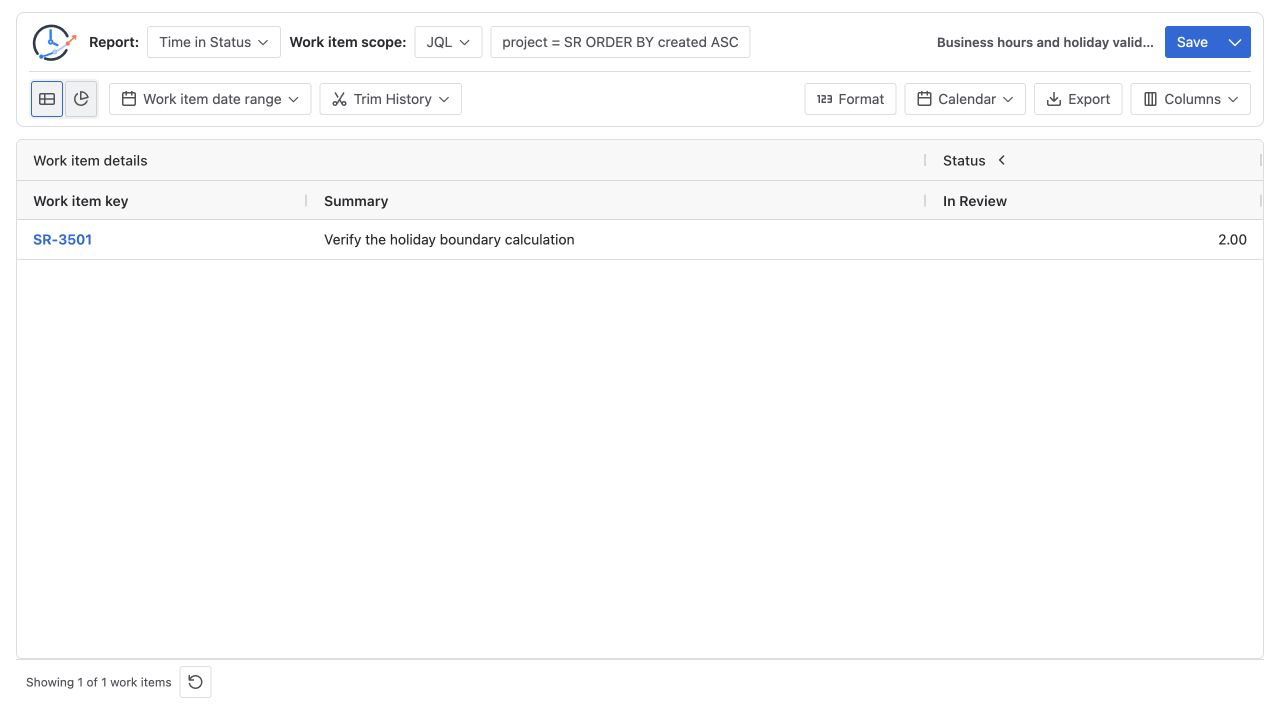
| Expected In Review value | 2.00 hours |
Configure the calendar
Prerequisite: you need Jira administrator access to open StatusPath Reports Settings and manage work calendars. If you do not have that access, ask a Jira administrator to create and save this calendar before you continue with the report check.
1. Open StatusPath Reports Settings
In Jira, go to Jira settings → Apps → StatusPath Reports Settings. The Work calendars table lists each calendar's timezone, schedule, exceptions, and available actions.
2. Create or edit the calendar
Select Create calendar to build a new calendar. To change an existing calendar, select Edit in its Work calendars row. Jira opens the Create work calendar or Edit work calendar editor.
Set Name to UTC Support with holiday, then select UTC under Timezone.
3. Enter the weekly schedule
Under Weekly schedule, enable Monday through Friday and set 09:00 to 17:00 for each enabled day. Only enabled days and their saved time periods contribute business time.
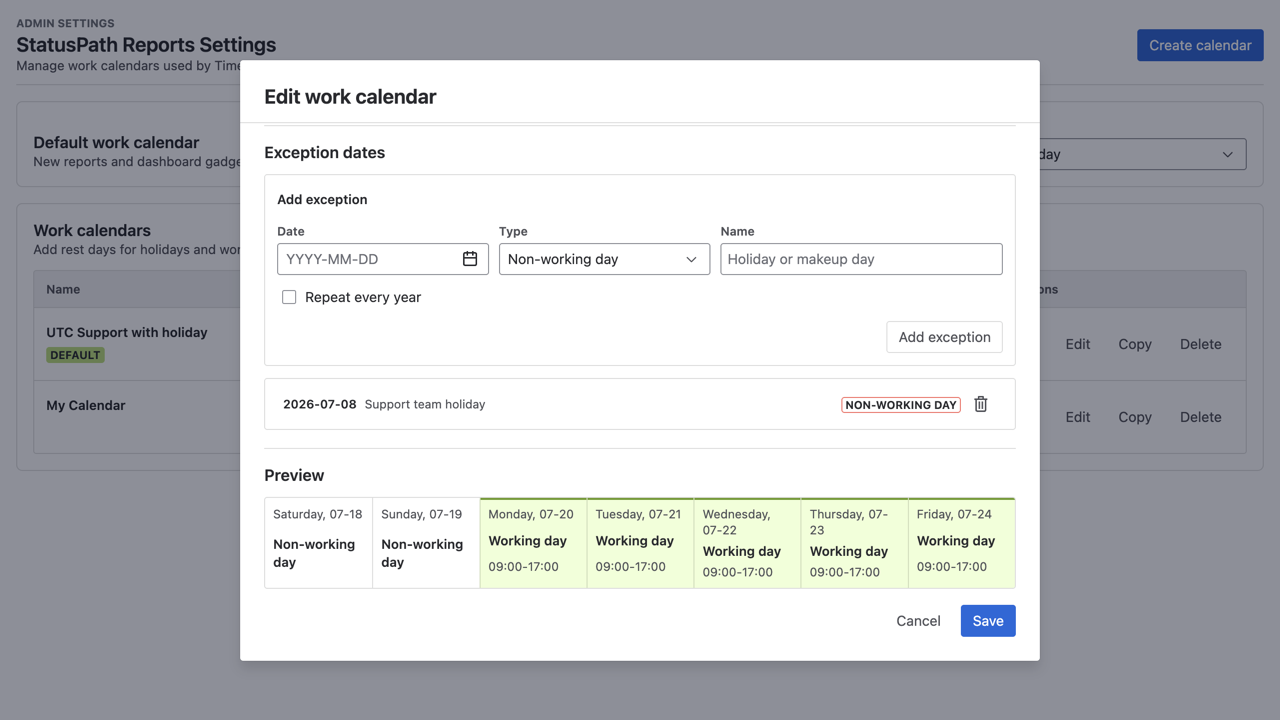
4. Add the holiday exception
Under Exception dates:
- Enter
2026-07-08in Date. - Select Non-working day in Type.
- Enter
Support team holidayin Name. - Leave Repeat every year cleared because this acceptance case is for one specific date.
- Select Add exception and confirm that July 8 appears in the exception list.
Add exception adds the date to the calendar draft. Select Save in the calendar editor to persist the complete name, timezone, weekly schedule, and exception list.
Select the calendar and wait for the result
Return to Apps → StatusPath Reports and use the main report:
- Select Time in Status.
- Set Work item scope to JQL and enter
project = SR ORDER BY created ASC. - Check Work item date range. Leave it unbounded for this isolated check, or choose a date field and range that includes SR-3501.
- Turn Trim History off. If you intentionally trim history, set a window that starts no later than
2026-07-07 16:00 UTCand ends no earlier than2026-07-09 10:00 UTC. - Set Format to Decimal Hours.
- Open Calendar and select
UTC Support with holiday. - Open Columns and confirm that In Review is selected and visible in the table.
- Wait for the report's automatic refresh to finish before reading the table.
Changing Calendar starts the refresh; no separate action is required for this calendar change. Find SR-3501 and check that In Review is 2.00.
Verify the 42-hour interval by hand
The Jira transition timestamps span 42 elapsed hours. The selected calendar counts only the two portions inside working hours:
| Segment | Elapsed time | Counted business time |
|---|---|---|
| Tuesday 16:00-17:00 | 1 hour | 1 hour |
| Tuesday 17:00-24:00 | 7 hours | 0 hours |
| Wednesday, July 8 holiday | 24 hours | 0 hours |
| Thursday 00:00-09:00 | 9 hours | 0 hours |
| Thursday 09:00-10:00 | 1 hour | 1 hour |
| Total | 42 hours | 2 hours |
The 40 excluded hours remain in Jira history; they fall outside the saved weekly schedule or on the non-working exception date.
Acceptance checklist
| Check | Expected evidence |
|---|---|
| Saved calendar | UTC Support with holiday appears in Work calendars. |
| Calendar definition | UTC, Monday-Friday 09:00-17:00, with one non-working exception on 2026-07-08. |
| Work item population | The recorded JQL is selected, and Work item date range does not exclude SR-3501. |
| History window | Trim History is off, or its window includes 2026-07-07 16:00 through 2026-07-09 10:00 UTC. |
| Report inputs | Time in Status, Decimal Hours, the new Calendar, and a visible In Review column are selected. |
| Refresh | Loading has finished after the Calendar selection. |
| Jira row | SR-3501 is present and In Review equals 2.00. |
| Manual check | 42 elapsed hours reconcile to 2 counted business hours. |
Common mistakes
Adding the draft exception but not saving the editor
Add exception updates the draft's exception list. The editor's Save action persists the calendar. Complete both steps.
Choosing the wrong exception type or recurrence
Use Non-working day to exclude July 8. A working-day exception adds working time instead. Leave Repeat every year off unless the date should recur annually.
Reading the old result during refresh
Calendar selection refreshes the table automatically. Wait until loading finishes, then verify the selected calendar and the SR-3501 value.
Changing Format instead of Calendar
Format changes how a duration is displayed. It does not apply working hours or exclude a holiday; the selected Calendar does that.
Frequently asked questions
Should I create a calendar or edit one?
Create a calendar for this isolated acceptance test. Edit an existing calendar only when its current users should receive the changed schedule or exception.
Does the holiday remove SR-3501 from the report?
No. JQL and the other scope controls determine the work-item population. The holiday changes only the business time counted inside the qualifying interval.
Why is the result 2.00 instead of 42.00?
Forty-two hours is elapsed time. The saved calendar counts Tuesday 16:00-17:00 and Thursday 09:00-10:00, while excluding the rest of the interval.
Related Guides
- Jira Business Calendars for Workflow Reporting
- How Time Zones Affect Jira Status Duration and Trend Reports
- How to Calculate Time in Status in Jira Cloud
- How to Exclude Weekends from Jira Time in Status
Reproduce the holiday check in your Jira site
Try StatusPath Reports on the Atlassian Marketplace to create a work calendar, add a dated exception, and verify a known Jira status interval before applying the calendar to a broader report.